Jump to content

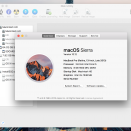
2 Screenshots

About This File

Disk Utility 13 is back!

Requires SIP Disabled


To run it you need to Allow apps from Anywhere under System Preferences -> Security & Privacy. To enable this options execute in Terminal: sudo spctl --master-disable


Yosemite Disk Utility for macOS Sierra


Note: When you launch this version two icons will appear on the dock. This is normal behavior!


Debug menu is available to list all partitions and mount EFI.


For the nostalgic or the crazy ones ... your favorite version of Disk Utility now works on macOS Sierra.


Upon launching you will need to provide password to run the scripts that make things spin.


Tested on a fresh install of macOS Sierra, on an actual MacBook Pro (separate machine from the one it was modified on)


Verified the following working:


1. Creating an image, restoring an image, converting an image

2. Partitioning a hard drive, erasing hard drive, restoring to hard drive

3. Verifying disk and repairing disk

4. Burning iso to DVD


Please proceed with caution, I would like some feedback from people on errors or bugs that might come up.


Enjoy!

  • Like 5
  • Thanks 1
  • Sad 1

User Feedback

Recommended Comments


seyedhossein

Posted

after run v13, the original disk utility (v16) not working

Error: framework unable to communicate with disk management daemon


anyway:

-how can restore v16?

-anybody run both v13 and v16 without any any problem?


Regards

Tightlovin

Posted

not working on Sierra 10.12.2

  • Like 1
J Lamp

Posted

Same for me, 10.12.2  I receive the error "Disk Utility is damaged and can't be opened. You should move it to the trash"

jaminmc

Posted

I Modified my loader script in Disk Utility.app/Contents/MacOS/loader.sh to the following below. Much safer, and doesn't blow up if Disk Utility crashes.... I also renamed my app to Disk Utility-13, and put it in my /Applications/Utilities folder, so it is easy to tell them apart. :)


Thank you dimosgmx for getting it to work! I recommend the script edits below for an updated version :)

#!/bin/bash
cd -- "$(dirname "$0")"
pwd

# This moves the original framework, if this is the first time running, then links to it. If it does, it links to Sierra's version
if [  ! -f /usr/libexec/diskmanagementd-sierra ]; then
    mv /usr/libexec/diskmanagementd /usr/libexec/diskmanagementd-sierra
    ln -s /usr/libexec/diskmanagementd-sierra /usr/libexec/diskmanagementd
else
    rm /usr/libexec/diskmanagementd  # After Diskutility closes for any reason, we unlink the framework
    ln -s /usr/libexec/diskmanagementd-sierra /usr/libexec/diskmanagementd # Link back to original
    
fi
cp diskmanagementd /usr/libexec/diskmanagementd-elcap # Copy El Capitan's to the same place
rm /usr/libexec/diskmanagementd # Removes the link
ln -s /usr/libexec/diskmanagementd-elcap /usr/libexec/diskmanagementd # Links to El Capitan's version
./DiskUtility # Runs Diskutility
rm /usr/libexec/diskmanagementd  # After Diskutility closes for any reason, we unlink the framework
ln -s /usr/libexec/diskmanagementd-sierra /usr/libexec/diskmanagementd # Link back to original

  • Like 2
AllanCat

Posted

Same for me, 10.12.2  I receive the error "Disk Utility is damaged and can't be opened. You should move it to the trash"

sudo chown -R 0:0 /Applications/Utilities/Disk\ Utility-13.app fixes the problem, also thanks for jaminmc's script, it's super useful :)

tristanphan

Posted

I found that if you go to Show Package Contents on Disk Utility.app, then navigate to Contents > MacOS, you can delete "Disk Utility" and rename "DiskUtility" to "Disk Utility" to remove the second icon on the dock.

  • Like 1
backwards

Posted

if this has been answered in the thread, i apologize (i've read and re-read it a few times trying to fix myself).


i'm on 10.12.5. 


i get the osascripts message, [password], [enter], closes.


tried


sudo chown -R 0:0 /Applications/Utilities/Disk\ Utility-13.app


to no avail.


can anyone help?

totototo

Posted

Same problem with OSA Script window popping up and no Disk Utility launching.

kubajz

Posted

Same problem with OSA Script window popping up and no Disk Utility launching.


Same here! Help please!

TrumanHW

Posted

Same here. Also, can't have two programs with the same name in the Utilities folder... how are you guys doing this? 

laurence Reeves

Posted

Looks like this works in high sierra and a real mac, thanks.

bidwellian

Posted

Thank you!!


BTW you can use this command to remove the original Disk Utility:

sudo rm -r -f /Applications/Utilities/Disk\ Utility.app 

Jeff Hayford

Posted

Not ideal but I ran this command and it opened properly, icon in dock, app up and running


sudo /Applications/Utilities/Disk\ Utility-13.app/Contents/MacOS/DiskUtility 

Dans1975

Posted

will it run in Apps??  I can't get it to open... just 2 icons in dock... and asks for password.. using modified script..on HS 10.13.1

lfom

Posted

It doesn't work on High Sierra (10.13.1), probably because of SIP, I get this error when trying to open it:

2017-11-20 17:35:54.514 Disk Utility[34283:5409859] MyToolPath: /Users/macuser/Desktop/Disk Utility.app/Contents/MacOS/Disk Utility2017-11-20 17:35:54.514 Disk Utility[34283:5409859] url with last: (null)
2017-11-20 17:35:54.514 Disk Utility[34283:5409859] thePath: /Users/macuser/Desktop/Disk Utility.app/Contents/MacOS
2017-11-20 17:35:54.514 Disk Utility[34283:5409859] Daemon Path: /Users/macuser/Desktop/Disk Utility.app/Contents/MacOS/diskmanagementd
2017-11-20 17:35:54.514 Disk Utility[34283:5409859] duPath: /Users/macuser/Desktop/Disk Utility.app/Contents/MacOS/DiskUtility
/Users/macuser/Desktop/Disk Utility.app/Contents/MacOS/execute.scpt: execution error: mv: rename /usr/libexec/diskmanagementd to /usr/libexec/diskmanagementd-sierra: Operation not permitted (1)

Using DiskUtility instead (no space), opens the app (only one icon in dock), but I am not sure if it will work correctly...

2017-11-20 17:37:27.702 DiskUtility[34289:5412075] Failed to connect (cancelRecreate) outlet from (DUWindowController) to (NSButton): missing setter or instance variable2017-11-20 17:37:27.702 DiskUtility[34289:5412075] Failed to connect (repairSheetInfo) outlet from (DUWindowController) to (NSTextField): missing setter or instance variable
2017-11-20 17:37:27.872 DiskUtility[34289:5412075] 10.4-style NSNumberFormatter method called on a 10.0-style formatter, which doesn't work. Break on _NSNumberFormatter_Log_New_Methods_On_Old_Formatters to debug. This message will only be logged once.

Edit: OP says it needs SIP disabled. For those with problems:

http://osxdaily.com/2015/10/05/disable-rootless-system-integrity-protection-mac-os-x/

janjouf

Posted

GOD BLESS YOU

digitol

Posted

I'm successfully using it in Mac OS 10.13.3 (High Sierra) Thanks for this! I had the OSA script error as well. My solution was to run the binary from source. In other words, simply control-click on the patched disk utility app, and select "Show package contents"  Navigate to MacOS and run the "disk utility" binary. only caveat is the terminal window will open alongside.

-Digitol-

  • Like 1
rotoyouoio

Posted (edited)

this stopped working completely in 10.13.4 betas. doesn't show a single disk/partition/image. such a bummer. any ideas anyone?


ah, well, paragon has a nice substitute

Edited by rotoyouoio
BuXb

Posted

On 3/13/2018 at 9:47 AM, rotoyouoio said:

this stopped working completely in 10.13.4 betas. doesn't show a single disk/partition/image. such a bummer. any ideas anyone?


ah, well, paragon has a nice substitute

Is there a working version for 10.13.4+?


Paragon substitute: do you mean Paragon Hard Disk Manager?


×
×
  • Create New...