
iPhone Duplicate Photos Not Showing Up? Here’s What to Do
Have you decided to tidy up your photo gallery, but the duplicates are not showing in Photos on your iPhone? Or maybe you noticed that you don’t have the Duplicates option under Utilities in the Photos app at all? Well, both cases happen. Fortunately, they can be fixed, either directly or with a few workarounds. In this article, we’ll explain why these issues appear and what you can do to solve them. Let’s go step by step.
Why Are Duplicate Photos Not Showing on iPhone?
Based on long-term user reports and observed behavior of the Photos app, the issue where duplicate photos do not appear on iPhone is not new and cannot be tied to a single iOS release or device generation. Users reported the same problem on iPhone 13 models running early versions of iOS 16, and similar complaints continue on newer devices, including iPhone 16 and iPhone 17, across iOS 17, iOS 18, and iOS 26. This consistency strongly suggests that the problem is not a temporary bug, but rather a limitation in how iOS detects and manages duplicates. For this reason, the issue clearly requires an explanation of the underlying causes:
So, if you do see the Duplicates option in Utilities, but when you open it there are no new duplicates, even though you’re sure they exist, there are usually two scenarios:
- Your iPhone hasn’t finished re-indexing yet. The Photos app needs time to analyze your library in the background. Until the scan is done, duplicates won’t show up. This is especially common if you’ve just imported a lot of photos or switched devices.
- The system finished indexing, but didn’t detect duplicates. How can this happen? It’s because iOS counts only identical images as duplicates. That means the photos have to match pixel-for-pixel (including size, metadata, and format). For you, two shots might feel like duplicates, maybe one has a slightly different angle or a small change in lighting, but for the iPhone, they’re just “similar,” not exact copies. And similar photos don’t appear in the Duplicates folder.
Now, let’s look at the second scenario: if the duplicate option is not showing in the iPhone at all. Again, there are two possible reasons:
- You simply don’t have duplicates in your photo library. Apple hides the Duplicates option when there’s nothing to merge or delete. It’s not a bug, it’s just how the feature works.
- Your iOS version doesn’t support it. The Duplicates feature was first introduced in iOS 16. That means if you’re still on iOS 15, iOS 14, or anything older, you won’t see it under Utilities. The option just doesn’t exist on those builds.

How to Overcome the Absence of Duplicate Photos on iPhone with Third-Party Apps
Based on the reasons we outlined above, the easiest way to make your iPhone actually show duplicate photos is to use a third-party duplicate cleaner app. Unlike the built-in utility, these apps don’t waste time on background indexing, as they rely on their own algorithms to scan your entire photo library within seconds and detect both exact copies and similar-looking photos that most of us treat as duplicates. After that, they neatly group everything and let you clear the clutter with just a couple of taps.

How to use Clever Cleaner:
- Download Clever Cleaner from the App Store (or use the QR code on their official site).
- Open the app and allow full access to your photo library. The Similars tab opens automatically.

- You’ll see groups of duplicates and similar images, with the best ones already marked. Review the suggested deletions. If everything looks good, tap Smart Cleanup.
- A preview window appears where you can double-check the photos. If you see something you want to keep, hit Restore.
- If you’re satisfied, swipe the Slide to delete bar and confirm.

- For full control, you can also open each group manually. The app will highlight a “Best Shot,” but you can switch it if you prefer another one.
- Once ready, hit Move to Trash for the ones you want gone or Skip All to pass on a group.
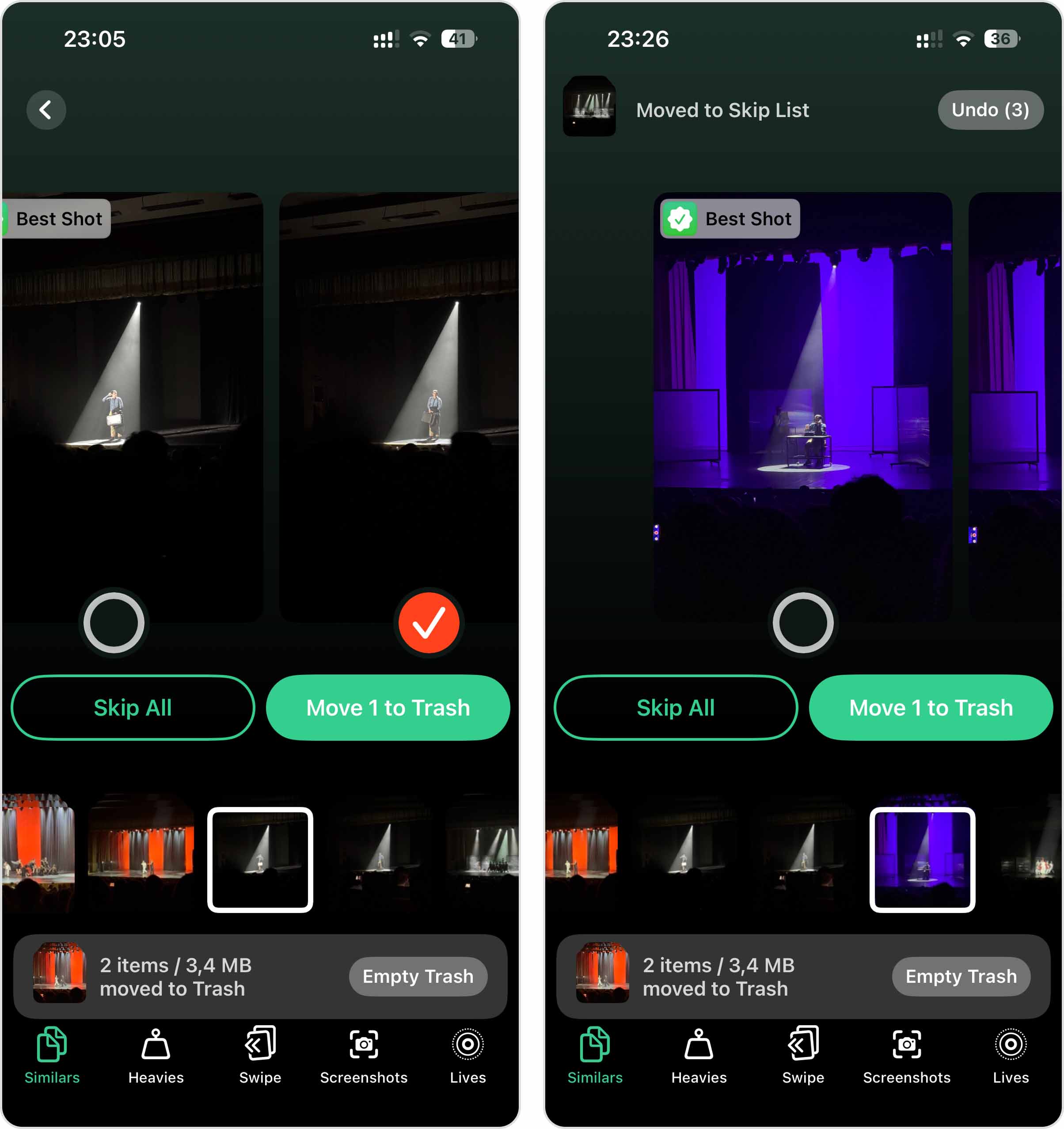
- Finally, tap Empty Trash to delete the files.
Regarding other functions of the program, in addition to the Similars feature we just covered, there are four more tools you might find useful for cleaning up your iPhone. You can read about them in detail in our full review of Clever Cleaner or on the official website, but here’s a short list with descriptions:
- Heavies — finds the largest videos and photos in your gallery and gives you a quick way to review and delete them. It also includes a built-in video compression option, which can help reduce video file size when you need to free up space quickly but cannot delete the video entirely yet.
- Swipe — groups your photos by month so you can sort them quickly: swipe left to delete, swipe right to keep.
- Screenshots — mirrors all screenshots from your Photos app and lets you clear them in one go. The handy part is that it can clean all these categories inside the Photos app in a single place.
- Lives — converts Live Photos into still images. You can either delete the original immediately or keep it on your iPhone.
Are There Alternatives to Fix the Problem When You Can’t Find Duplicate Photos on iPhone?
You don’t want to download any third-party programs, but you still need to fix the problem where your iPhone doesn’t show duplicates or the Duplicates option is missing in Utilities? The good news is that there are built-in features on your iPhone that can help. They’re simple to use, but we have to warn you upfront — they can take some time and may not always be effective because, as we mentioned earlier, the lack of duplicates is not always a problem, so keep that in mind. Which method works best depends on the root of your issue and how much effort you’re willing to put in.
Method 1: Check Your iPhone’s iOS and Update It
The very first thing to rule out when Duplicates don’t show up in Utilities is your iOS version. It might sound obvious, but plenty of people overlook it. The Duplicates folder only became a thing starting with iOS 16. Now, with iOS 26 already around the corner, anything below 16 is practically ancient in Apple years — and that’s exactly why the feature isn’t showing up.
How to see which iOS you’re on:
- Grab your iPhone and open Settings.
- Scroll down, tap General, then hit About.
- At the top of that screen, you’ll find Software Version. That’s the build your phone is running. For example, you might see iOS 26.0. If the number is 15 or lower, that’s your answer right there — the Duplicates tool simply doesn’t exist on your device.

How to install the latest iOS:
- Head back to Settings > General, but this time tap Software Update.
- Your iPhone will run a quick check and show you the newest version available.
- If you see Download and Install (or Install Now), tap it, accept the terms, and let the update do its thing. The phone will restart, and a few minutes later, you’ll be on the latest release.

Method 2: Let the iPhone Finish Duplicate Reindexing
To find duplicates that aren’t showing in photos on iPhone, and prefer to stick only with built-in iPhone tools, then the easiest fix is to simply let your phone finish reindexing your photos.
So what exactly is reindexing? Think of it as your iPhone taking inventory of your photo library. Every time you add new shots, delete a batch, or shuffle things around, the Photos app quietly goes back through the entire collection. While it’s at it, the system tags faces, objects, locations — and yes, it hunts for duplicates too. Until that behind-the-scenes sweep is done, the Duplicates section may stay empty, or the option might not even show up under Utilities.
Here’s how you can help it along:
- Put your iPhone on charge.
- Leave Wi-Fi on, lock the screen, and let the phone sit for a few hours — overnight is usually best.
- The next time you check, open Photos, scroll down to Utilities, and see if the Duplicates tab finally appears.

Method 3: Manually Search For Duplicates And Similar Photos
The last option we’ll cover is also the least convenient and the most time-consuming — a manual search. This is for those cases where the built-in utility doesn’t show your duplicates, and you don’t want to use any third-party apps. In this scenario, you’ll be scrolling through your gallery and hunting down similar shots yourself. Not fun, but it works.
Fortunately, the Photos app has a few built-in tools that can make the process a little easier. They won’t fully replace a cleaner app like Clever Cleaner, but they can save you from digging through thousands of images one by one.
Here’s what to do:
- Open the Photos app on your iPhone.
- Use the Search tab at the bottom. Type in a keyword related to the picture you want to check, for example, “beach,” “dog,” or “birthday.” This will bring up groups of similar shots so you can delete the extras.

- Another option is to use the Months filter in the Library tab. Scroll to the month or date when you know you took a lot of pictures. You’ll often find duplicates or very similar photos grouped together there.
- Open each similar photo, decide which ones you don’t need, and tap Delete.

Final Thoughts
Now you know why duplicate photos are not showing on iPhone, why the Duplicates option may not appear in Utilities, and what you can do to fix it. We can’t tell you exactly which method to pick, that depends on your situation, but if you ask us, we lean toward the fastest approach: using a dedicated app like Clever Cleaner. And remember, keeping your iOS up to date solves half of these problems before they even start.
If your main goal is to free up storage, don’t stop with duplicates. There are plenty of other places to check. We’ve got separate step-by-step guides for that:
- How to Delete Files on iPhone
- How to Delete Large Attachments on iPhone
- How to Clean Junk Files on iPhone
And if your iPhone is on the older side and can’t run the latest iOS anymore, you’ll definitely want to check out How to Speed Up an Old iPhone.
FAQ