
Disk Drill Review (macOS Version)
When it comes to data recovery solutions for macOS, Disk Drill stands out as one of the most popular data recovery tools available, promises to effortlessly restore your lost or deleted data from various storage devices like internal drives, external HDDs, SSDs, USBs, and SD cards. Our goal with this review is to put Disk Drill to the test in real-world scenarios to determine whether it truly deserves its widespread acclaim.
And now that the software has rolled out its major upgrade to Disk Drill 6, we decided to take a fresh look. In this updated Disk Drill review, we’ll walk through what’s new, what’s improved, and (more importantly) how it performs in real-world recovery scenarios to see if it still holds up as a go-to solution for Mac users.
Let’s get going.
- Disk Drill 6 focuses on practical improvements, including faster scans and more reliable recovery results, rather than UI changes.
- The software now performs well with fragmented videos from camera SD cards.
- Byte-to-Byte Backup remains a core feature for unstable or failing storage.
- Recovery results depend on the data loss scenario. Disk Drill shows its strongest performance with accidental deletion, formatted volumes, and damaged but readable storage devices.
- The interface stays beginner-friendly while still exposing advanced tools needed for more complex recovery cases.
- The free version works mainly as a diagnostic tool, offering file previews but requiring a paid license for actual recovery.
- According to the developer’s Privacy Policy, analytics data does not include personal or sensitive information and can be disabled entirely in the settings.
- Disk Drill remains one of the most complete data recovery toolkits available for macOS.
- Overall, Disk Drill is a tool that’s definitely worth trying if you deal with data loss on macOS.
Our Process of Evaluation of Disk Drill on macOS
To determine whether Disk Drill for macOS lives up to its reputation as a premier data recovery tool, we subjected it to a series of rigorous tests that mimic real-world data loss scenarios. Our evaluation focused on assessing Disk Drill’s performance, reliability, and versatility in recovering various types of data from different storage devices commonly used by Mac users.

Our testing was conducted on a high-performance Mac setup to make sure that Disk Drill operated under optimal conditions:
- Model: MacBook Pro (2023).
- Processor: Apple M2 Pro.
- RAM: 16GB.
- Storage: 1TB SSD.
- Operating System: macOS Sequoia.
This setup gave us enough power to run demanding recovery tests without any slowdowns, so the results here reflect Disk Drill 6’s true capabilities, not the limitations of our hardware.
To evaluate Disk Drill’s versatility, we used a diverse range of storage devices with different capacities and file systems:
- 1TB MacBook Pro internal drive formatted with APFS.
- 2TB Seagate Backup Plus external hard drive formatted to HFS+ and exFAT.
- 16GB Kingston DataTraveler (initially FAT32, then reformatted to exFAT), 64GB SanDisk Ultra (initially FAT32, then reformatted to exFAT).
- 32GB SanDisk Extreme (used in a digital camera with RAW images and high-definition video files), 128GB Lexar Professional (used in a DSLR camera with RAW images and 4K video files).
Disk Drill’s ability to handle a wide array of file formats is critical for thorough data recovery. We tested the following file types:
- Documents: Pages (.pages), Numbers (.numbers), PDF, DOCX.
- Compressed files: ZIP, RAR.
- Disk images: DMG, ISO.
- Media files: MOV, MP4, AVI, RAW (CR2, CR3, NEF), JPEG, PNG, TIFF.
- Design files: PSD, AI.
- Miscellaneous: SQLite databases, EPUB ebooks.
Recovery Scenarios
To thoroughly evaluate Disk Drill’s effectiveness, we simulated common data loss situations that Mac users frequently encounter. These scenarios reflect real-world challenges and provide a broad assessment of Disk Drill’s capabilities. We replicated incidents to test how well Disk Drill can recover data under various conditions and from different types of storage devices commonly used in macOS environments.
- Accidental file deletion. We deleted a mix of documents, images, and videos from the internal and external drives to assess Disk Drill’s ability to recover recently removed items from an APFS-formatted drive.
- Partition formatting. The external HDD was formatted to both HFS+ and exFAT to test Disk Drill’s performance in restoring data from different file systems after reformatting. We also deleted a partition from the external HDD to evaluate Disk Drill’s ability to identify and restore lost partitions along with the data contained within them.
- Corrupted storage media. We added two more deliberately corrupted SD cards to the test (more on this below). This simulated real-world data loss situations involving RAW images and 4K videos on a malfunctioning storage device.
Is Disk Drill Safe to Install?
Before we go into the installation process and safety measures of Disk Drill for macOS, it’s important to address the security and reliability aspects of the software. First and foremost, always download Disk Drill directly from the official CleverFiles website. This guarantees that you are obtaining a genuine version of the software, free from any counterfeit or malicious modifications that could pose security risks to your Mac. Avoid third-party download sites, as they might host altered versions of the software that could contain harmful components.
During the installation of Disk Drill, you will be prompted to grant Full Disk Access. This permission is necessary for the software to scan and recover data from all areas of your storage devices. Full Disk Access is a standard requirement for advanced data recovery tools on macOS because it allows Disk Drill to access hidden and system files necessary for effective data retrieval. Rest assured that Disk Drill handles this access responsibly; it focuses solely on data recovery and does not interfere with your system’s normal operations.

Like most recovery tools, Disk Drill collects anonymous usage data to help improve the app over time. According to CleverFiles’ Privacy Policy, this data does not include personal or sensitive information. If you prefer not to share analytics at all, you can disable data collection in the app settings with a single click:
- Launch the Disk Drill application from your Applications folder or Launchpad.
- Click on Disk Drill in the top menu bar and select Preferences from the dropdown menu.
- In the Preferences window, go to the Privacy.

- Uncheck the box labeled Share analytics with CleverFiles.
- Close the Preferences window to save your settings.
Additionally, Disk Drill uses a non-destructive data recovery process that does not alter or overwrite existing data on your drive during recovery. This minimizes the risk of further data loss and maintains the integrity of your remaining files. We found it to be completely safe to install and run.
How to Use Disk Drill on macOS
No matter what kind of storage device or file type you’re trying to recover, the process in Disk Drill 6 stays just as straightforward as it was in version 5. You won’t get lost here.
Our typical recovery process looked like this:
- We opened the Disk Drill application from the Applications folder or Launchpad. The main dashboard displayed all connected storage devices, including internal drives, external HDDs, SSDs, USB flash drives, and SD cards. This overview made it easy to identify the target drive from which we needed to recover data.
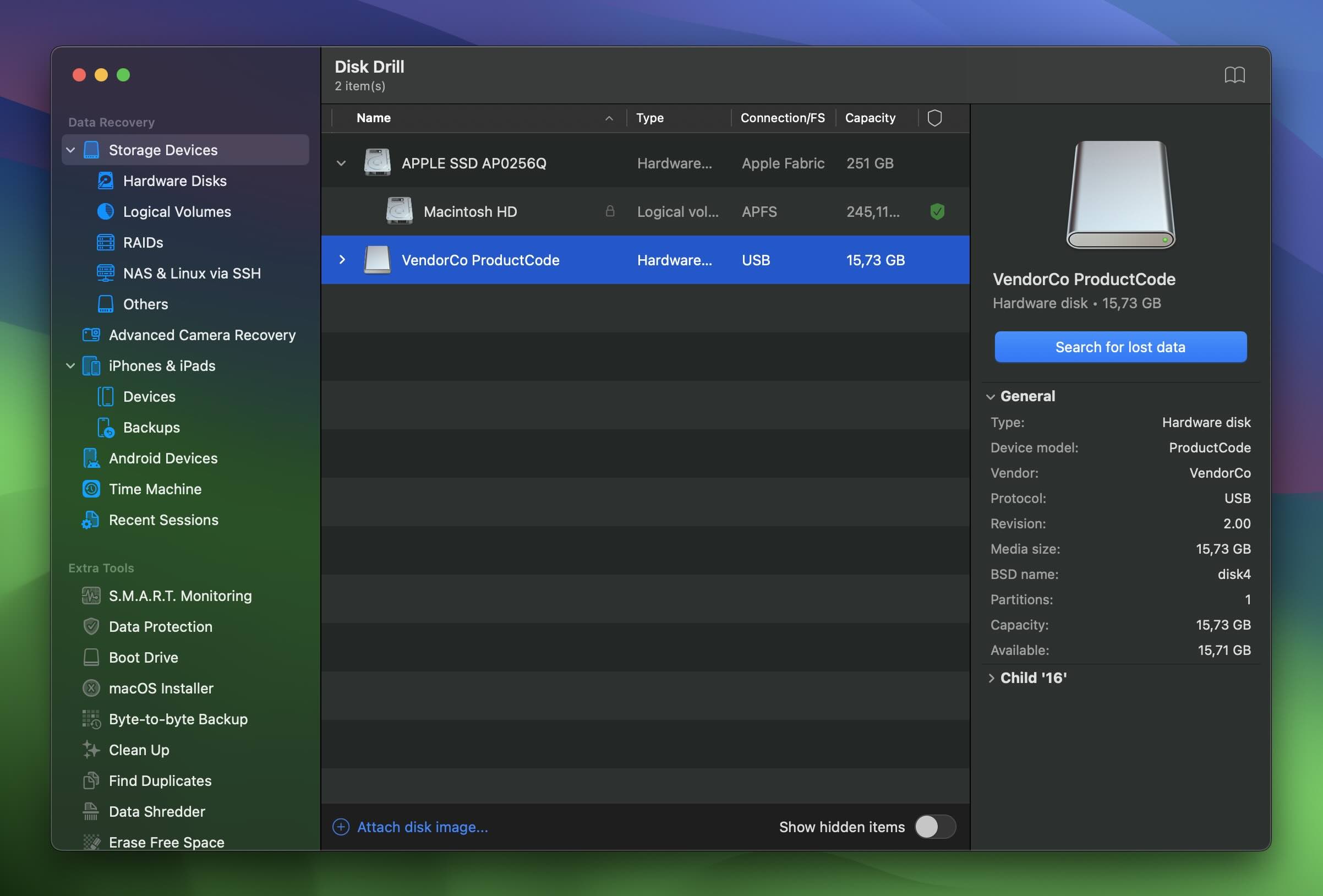
- Next, we selected the specific drive or partition where the data loss had occurred. Disk Drill supports a wide range of file systems, including APFS, HFS+, FAT32, and exFAT. While that’s not the full list, these are the most common formats you’ll run into on a Mac (and the ones most users care about).
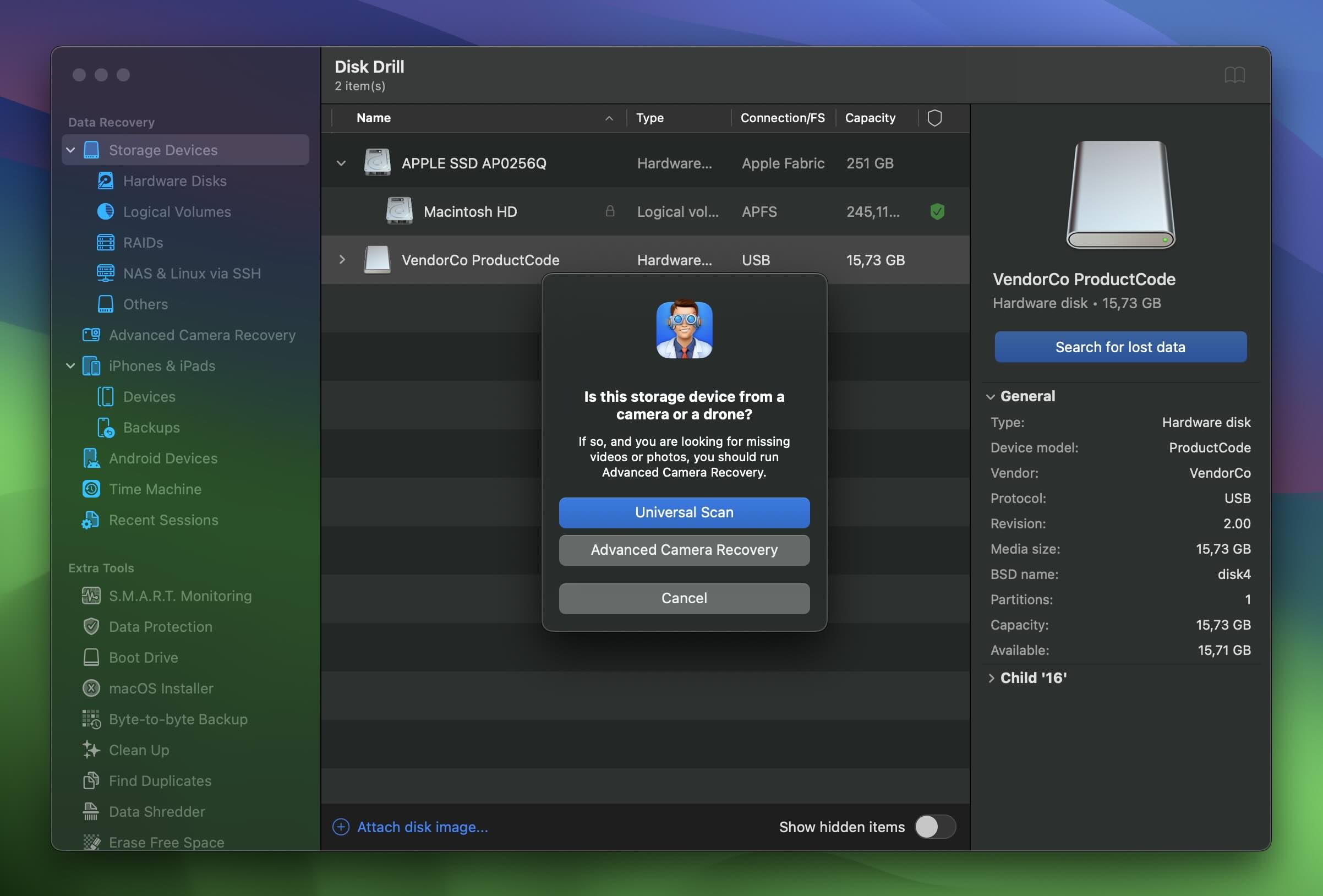
- After we selected the target drive, we clicked the “Search for lost data” button to begin the scanning process. Disk Drill 6 now throws one extra prompt: Universal Scan or the new Advanced Camera Recovery(ACR). We tested both: ACR for our SD cards from a digital camera, and Universal for everything else. Unless you’re hunting down fragmented video, Universal is still the right call.
We noticed that Disk Drill 6 feels noticeably faster than the previous version. The developer claims recovery is now up to 25% quicker, and while we usually take those kinds of numbers with a huge grain of salt, this one seems legit. The backend improvements clearly did their job, and honestly, there’s nothing to complain about here.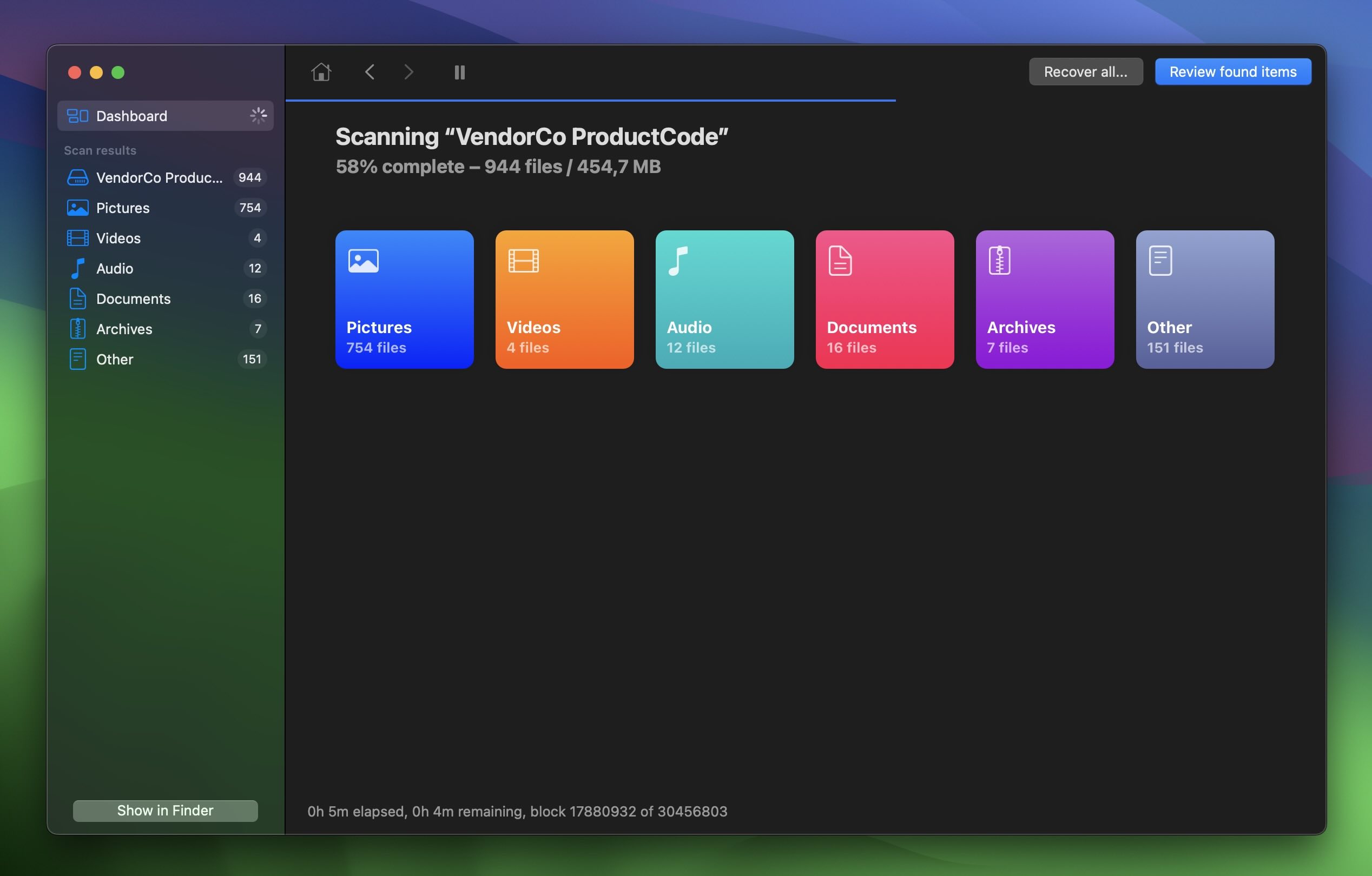
- Once the scan was complete, Disk Drill presented a list of recoverable files categorized by type: Documents, Images, Videos, and so on. If you’ve used the previous version, the interface will feel familiar. But there’s more polish this time around: the sidebar has been redesigned, the icons look sharper, and the overall navigation feels cleaner. All the changes are subtle upgrades (and to be fair, the old UI was already pretty slick).
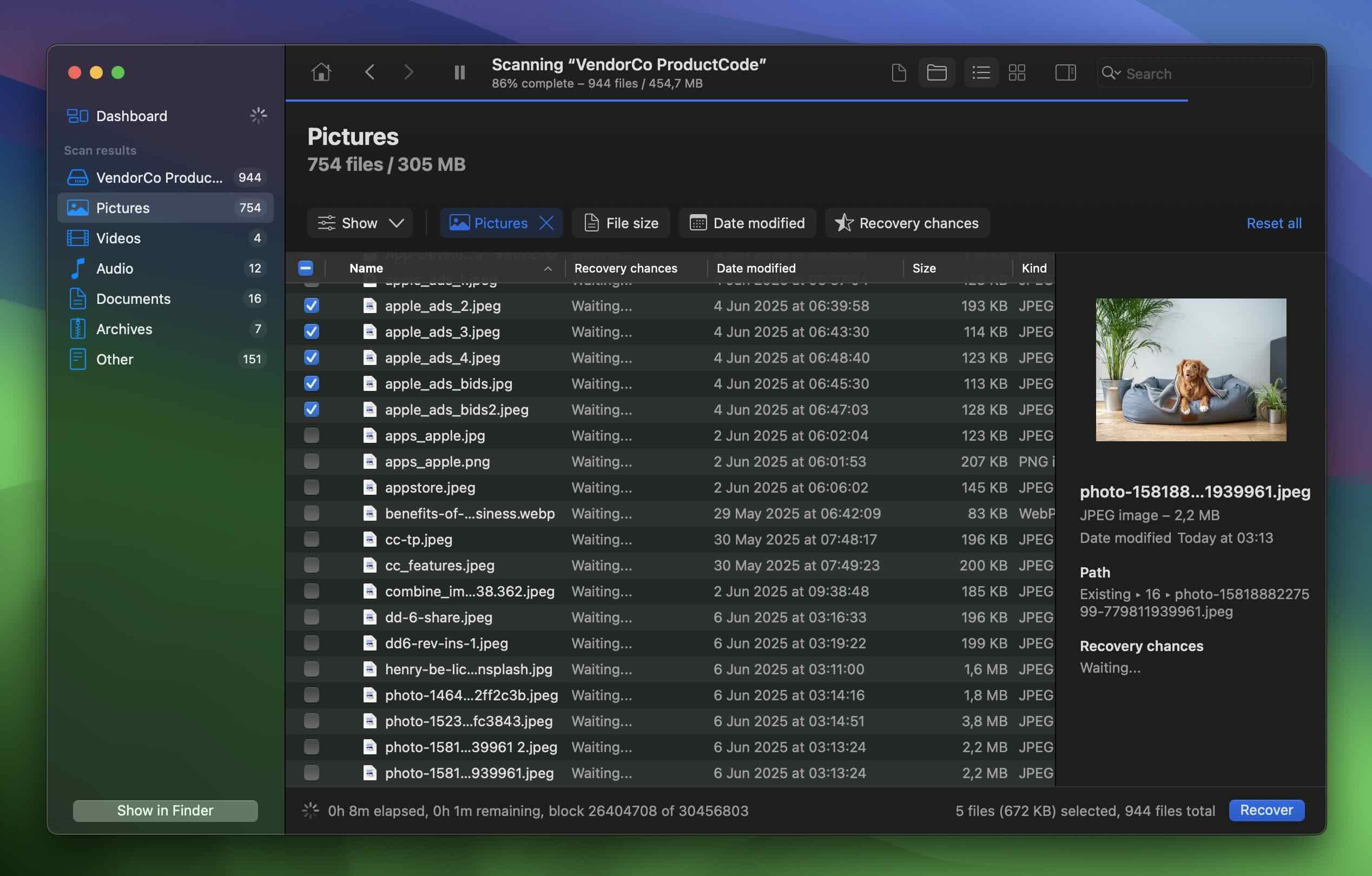
- We used the preview feature to check each file’s integrity and relevance before recovering anything. This made it easy to pick out exactly what we needed; without bringing back broken or unnecessary files. Previews remain one of Disk Drill’s strongest features. Image and video files load almost instantly, which we’ve always appreciated, especially compared to other tools where previewing is slow, glitchy, or just doesn’t work for most types. In many cases, reliable previews make all the difference.
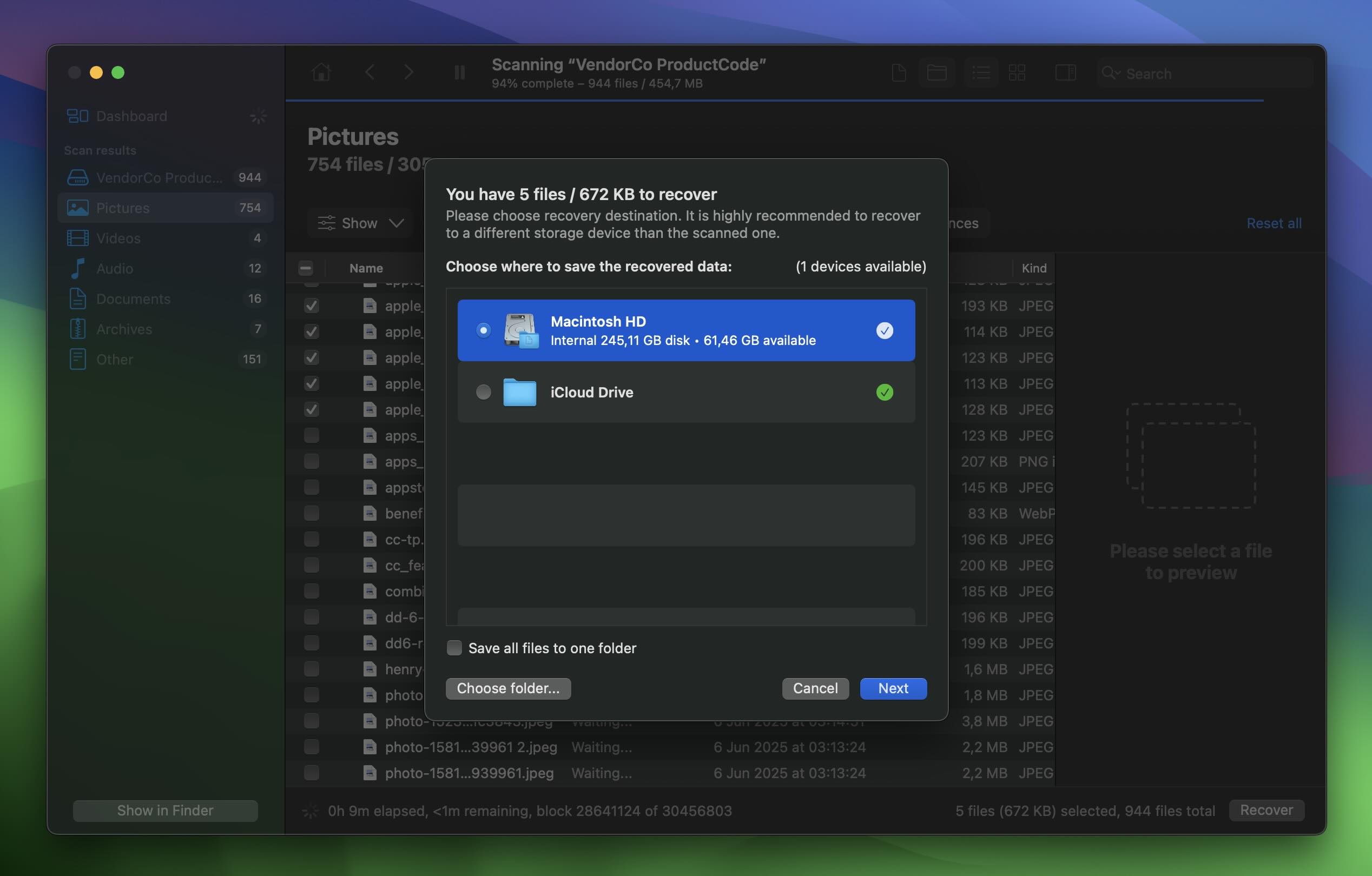
- After reviewing the files, we selected the ones we wanted, clicked the “Recover” button, and chose a safe destination to save the recovered data. Just like in previous versions, Disk Drill 6 reminds you not to recover files to the same drive you’re restoring from – and that’s solid advice. Writing new data to the affected drive can overwrite what you’re trying to get back, which might make recovery much harder (or more like impossible).
- After the recovery finished, Disk Drill suggested opening the destination folder to review the restored files. It’s a small touch, but convenient (no need to dig through Finder to check if everything came through correctly).
- In our case, the recovered files opened without issues, and their original names and folder structure were preserved (where possible).
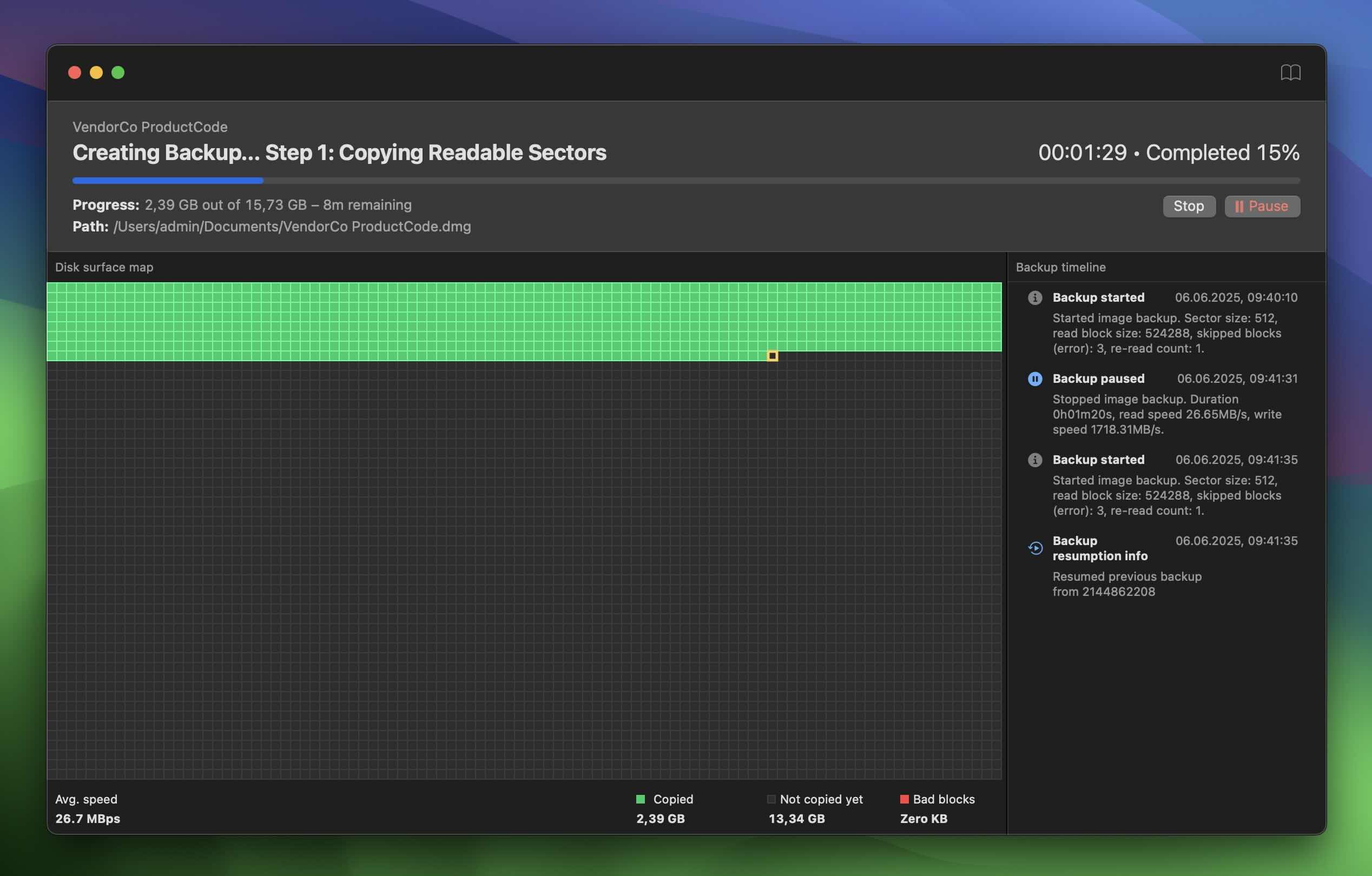
In version 6, this feature got a serious upgrade. The new next-gen Byte-to-Byte Backup adds better fault tolerance and a very detailed recovery progress tracking, which we really liked. It’s cleaner to look at and gives you clear feedback on what’s happening behind the scenes. This feature is an absolute must in any serious data loss case involving compromised/unstable storage.
Our Findings on Disk Drill’s Performance
To put it briefly, after running Disk Drill 6 through a wide range of real-world data loss scenarios, the Mac version delivered excellent recovery results across the board. In our view, its reputation as one of the top data recovery tools out there is well earned.
Recovery Success Rate
Disk Drill consistently achieved high recovery success rates across all tested scenarios and on every type of device we included in our test setup.
In cases of accidental file deletion, the software successfully retrieved 100% of the deleted documents, images, and videos from the external drives (16GB Kingston DataTraveler and 32GB SanDisk Ultra). In partition format tests, the 2TB Seagate Backup Plus (formatted to both HFS+ and exFAT) was used, and Disk Drill recovered over 95% of the files across both file systems.
Even in the more difficult scenario involving two corrupted Transcend SD cards that we used to test Disk Drill’s disk imaging capabilities, the tool managed to recover 90% of the data, which included all RAW images and most 4K video files. These impressive success rates underscore Disk Drill’s robustness and reliability in diverse data recovery situations.
File Integrity
Disk Drill 6 consistently preserved filenames, folder structure, and metadata during recovery. Most files came back fully intact and ready to use.
Even large videos from formatted partitions played back smoothly, with only minor artifacts in rare cases. Overall, file quality held up extremely well.
One standout upgrade is the new Advanced Camera Recovery. As we mentioned earlier, we tested it on a fragmented SD card from a Canon camera, and it successfully rebuilt complex video and image files (CR2, CR3) that many tools we previously included in our best data recovery software for Mac list usually mess up. Real users confirm this advantage. Disk Drill reviews on Reddit include multiple accounts of recovering data after Recuva and similar tools failed to deliver usable results. You can even help the process by selecting the camera type (GoPro, Canon, Sony, DJI, and others), which should improve accuracy.
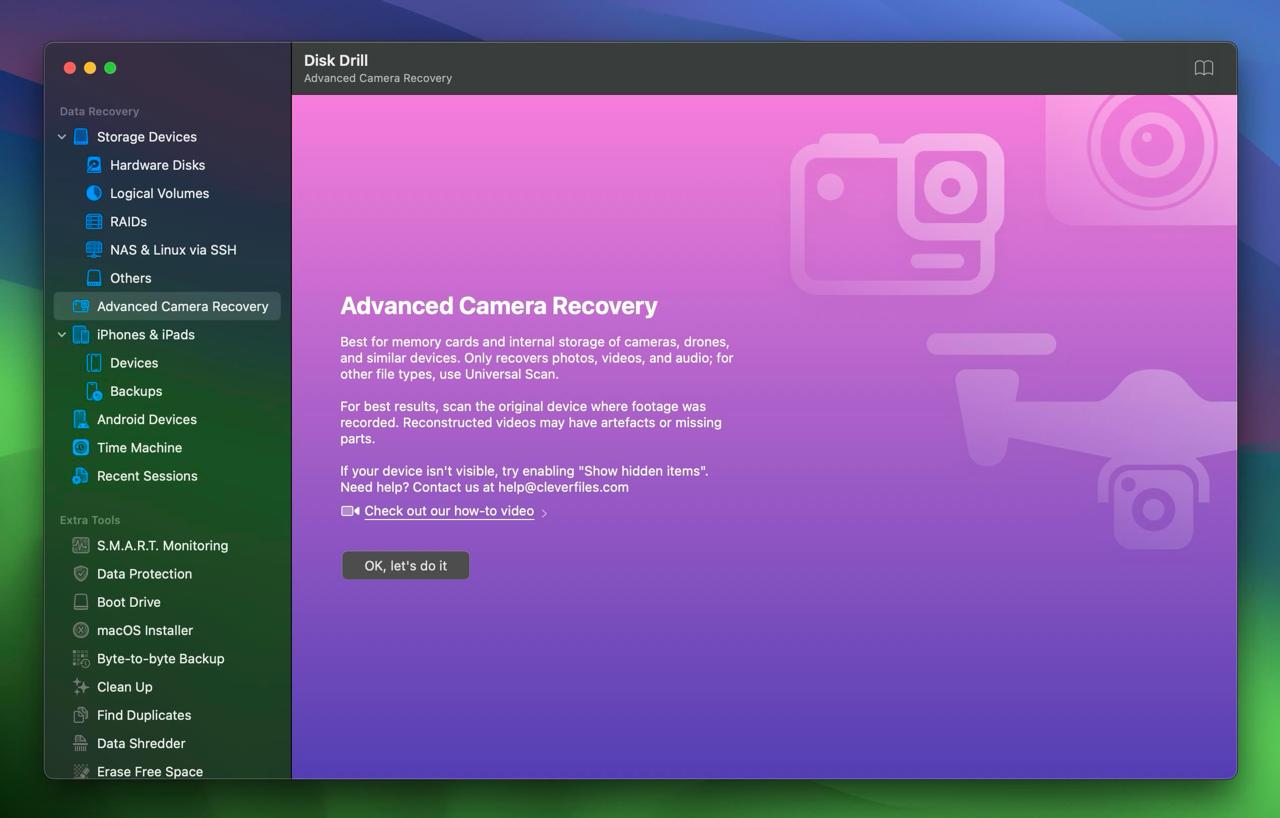
If you’re a professional working with high-quality images and footage, this feature alone could easily justify the license. It’s a huge step forward for recovering media from action cams, drones, and DSLRs.
Recovery Speed
Like we said earlier, Disk Drill 6 shows noticeable speed improvements over the previous version. In our tests, scans for recently deleted files finished in about 10 minutes. More complex recoveries (like formatted drives or lost partitions) took between 20 to 50 minutes, depending on size and file system.
For corrupted SD cards, each scan wrapped up in roughly 30 minutes. These quick turnaround times make Disk Drill a solid choice for both time-sensitive recoveries and routine data loss situations.
User Experience
The user experience with Disk Drill was great. Unlike some other recovery tools, Disk Drill operates without intrusive popup windows and offers a clean, distraction-free interface throughout the recovery process. The intuitive and organized interface allowed users of all technical levels to navigate the recovery process with ease.
We were able to preview and recover files even before the scan was fully completed, which significantly accelerated the recovery workflow. The preview functionality was one of the best we have seen in similar tools, and it provided clear and detailed previews that made it easy to verify the integrity and relevance of each file.
Disk Drill still stands out as one of the easiest tools to use in its category, and it pulls that off without cutting corners.
Advanced Features
Disk Drill version 6 builds on its already strong toolkit with several meaningful upgrades and new additions. Here’s a look at its impressive expanded arsenal:
- Data Protection. Tools that help protect your data against future loss.
- S.M.A.R.T. Monitoring. Continuously monitors the health of your drives to alert you of potential issues before they lead to data loss.
- Advanced Camera Recovery. This new feature rebuilds fragmented video files from cameras like GoPro, DJI, Canon, Sony, and many more.
- Data Shredder. Securely deletes sensitive files, making them unrecoverable.
- Find Duplicates. Identifies and removes duplicate files to free up valuable storage space.
- Clean Up. Helps optimize your system by removing unnecessary files and clutter.
- macOS Installer. Facilitates a smooth installation process tailored for macOS environments.
- BitLocker Recovery on macOS. One of the few tools that can recover data from BitLocker-encrypted volumes on a Mac.
- Byte-to-Byte Backup. Creates a complete image of a failing drive, enabling safe and effective data recovery from the backup rather than the compromised device.
- Hex View & Search. Built-in hex editor for forensic-level inspection.
- APFS Recovery on Windows. Lets you scan Apple-formatted drives directly from a PC; if you don’t have access to a Mac but still need to recover data from an APFS drive.
We were glad to see that Disk Drill’s team didn’t abandon all the extras and advanced features; it actually built on top of them. Tools like RAID recovery and SSH-based remote access have been refined, now it’s easier to handle complex setups across both Mac and Windows. Linux recovery also saw a boost, with EXT3 and EXT4, where support for symbolic links and overall accuracy improved noticeably.
Maybe 99% of people will never have to deal with something like that, but the fact that the developers put real effort into improving these advanced features says a lot. It shows a level of care and depth that goes way beyond surface-level UI tweaks.
Pricing and Licensing
Like most tools on the market, Disk Drill for macOS is not entirely free. However, it offers a variety of pricing plans tailored to meet the diverse needs of its users, ranging from casual individuals to professional data recovery specialists. These plans provide different levels of functionality and support, let’s take a closer look:
- Basic (Free) version. The Basic version of Disk Drill is available at no cost, allowing users to preview recoverable files. While this tier includes features such as file previews, Data Protection, and Byte-to-Byte Backup, unlimited data recovery requires an upgrade to a paid plan. This makes the Basic version an excellent choice for users who need to assess the software’s capabilities before deciding to invest in a full recovery solution.
- PRO Subscription ($89/year). The PRO Subscription unlocks unlimited data recovery with an annual plan. One license covers both Disk Drill for macOS and Disk Drill for Windows, supporting up to three device activations. This plan includes advanced scanning methods, priority updates, and ongoing access to new file format support. It is ideal for users who want the latest recovery capabilities and prefer to stay current with regular feature updates and improvements.
- PRO Perpetual License ($149). The PRO Perpetual License provides unlimited data recovery with a one-time payment that includes lifetime updates. Like the subscription, one license works across both macOS and Windows with up to three device activations. This option is perfect for users who prefer a single payment without recurring charges while still receiving future software updates and new features.
- Enterprise Version (Custom Pricing). Designed for businesses and professional data recovery services, the Enterprise version offers flexible licensing tailored to organizational needs. It encompasses all features available in the PRO plans, along with priority technical support and additional tools suited for large-scale data recovery operations. Contact CleverFiles for a custom quote based on your specific requirements.
✎ Note. If you purchased Disk Drill 5 on or after December 1, 2024, you’ll get a free upgrade to Disk Drill 6.
- Existing users also qualify for a 50% loyalty discount when upgrading from older versions.
- Users who already own the Lifetime Upgrades add-on automatically get access to version 6 at no extra cost.
- Disk Drill is also currently running a Windows license bonus promo, where buying the macOS version gets you the Windows version for free (great for mixed environments).
- Educational, non-profit, and government users get 20% off, and switchers from other recovery tools can score a 50% competitor discount.
All in all, Disk Drill keeps pricing competitive and fair, especially given how much value it packs into the PRO tier, even more so now with the version 6 improvements.
These options keep Disk Drill accessible and competitive, providing value for a wide range of users from individual consumers to large enterprises. Whether you need a basic solution for occasional data recovery or a complete toolset for professional use, Disk Drill offers flexible plans to meet your needs.
Disk Drill’s Support
While Disk Drill for macOS is renowned for its ease of use and swift data recovery capabilities, encountering issues is always a possibility. Fortunately, CleverFiles provides support to help users navigate and resolve any challenges that may arise during the recovery process.
Disk Drill offers an extensive library of tutorials available on their official website. These guides cover a wide range of topics, such as data recovery from various device types, different platforms, and specific file formats. Whether you need to retrieve lost documents, photos, or videos, these tutorials provide step-by-step instructions to assist you effectively.
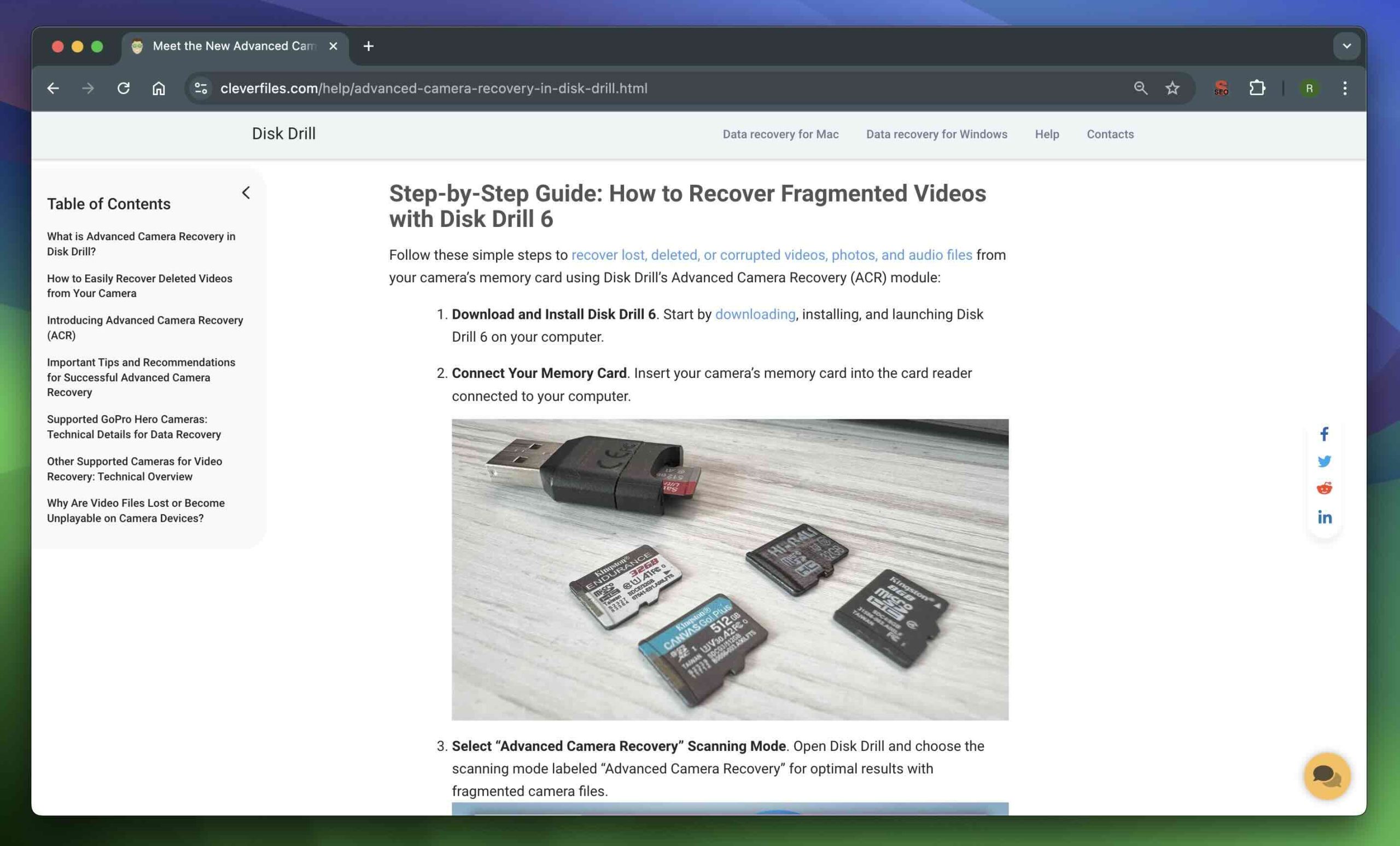
Additionally, Disk Drill’s detailed Knowledge Base is packed with valuable information, such as in-depth articles and guides that delve into advanced recovery techniques and best practices. A standout feature is its encouragement for users to first utilize their operating system’s built-in utilities before opting for Disk Drill. This balanced approach empowers users with foundational recovery skills and helps them make informed decisions about when to use Disk Drill’s advanced tools.
If the tutorials and knowledge base do not resolve your issue, Disk Drill provides multiple avenues for direct support:
- For immediate assistance, users can engage with Disk Drill’s support team through live chat on their website.
- Alternatively, you can fill out a support form detailing your problem. The Disk Drill team will respond with tailored solutions to help you overcome any obstacles in your data recovery journey.
- Disk Drill maintains an active presence on various social media platforms, including Facebook, Twitter, and LinkedIn. These channels offer additional ways to seek help, share experiences, and stay updated with the latest features and updates.
Our Verdict
After a thorough evaluation, Disk Drill 6 still stands out as one of the best data recovery software solutions we’ve ever tested. It builds on an already strong foundation with meaningful upgrades, like Advanced Camera Recovery, noticeably quicker scans, expanded file‑type support (now captures Nikon N‑RAW, NEV, plus 100+ fresh or refined signatures), broader file‑system coverage, and next‑gen Byte‑to‑Byte Backup.
The interface has received a subtle facelift, but it’s still clean, intuitive, and looks right at home on the latest macOS versions. It strikes a balance: approachable enough for beginners, yet packed with features advanced users will appreciate. Version 6 keeps that balance intact and doesn’t mess up what already worked.
Whether you’re recovering a few lost photos or handling a corrupted external drive, Disk Drill 6 has the tools to get the job done (and now it does it faster).
For macOS users, it’s still our top pick.
👍 Pros
- High recovery success rate across various scenarios.
- Maintains original filenames, folder structures, and metadata (where possible).
- Fast recovery speeds.
- Intuitive and organized interface without intrusive popups.
- Impressive arsenal of advanced features including Advanced Camera Recovery, data protection, S.M.A.R.T. monitoring, Data shredder, Find duplicates, Clean up, and next-gen Byte-to-Byte Backup.
- Excellent preview functionality.
- Excellent preview functionality, allowing file preview and recovery even before the scan is fully completed.
- Thorough support system with tutorials, and an extensive knowledge base.
- Non-destructive recovery process that does not alter or overwrite existing data on your drives.
- Dark mode.
- Session management.
👎 Cons
- The Free version only allows file previews without enabling actual data recovery.
- No ability to create custom boot disks, which can be useful in certain recovery scenarios.
FAQ