
How to Organize Photos on iPhone Without Duplicates
If you want to make sense of your messy photo library or just learn how to organize photos on your iPhone, our guide will show you the best ways to do it. We have tested many possible ways, both with built-in Apple features and with third-party apps, and we’ll show you how to organize photos on iPhone without duplicates, without mess, and definitely without hassle. Let’s do this.
Are Photos Duplicated When Added to Albums on iPhone?
No, the iPhone’s design prevents the creation of duplicate photos in albums. When a user adds a photo to an album, the system simply tags the photo with the album’s label rather than creating a new copy. This approach helps maintain a clean and efficient photo library.
The iPhone stores all photos in a central library, and albums act as filters that organize this central collection without duplicating the actual files. For example, when you create an album for a vacation, the photos appear in both the “Recents” section and the vacation album, but only one instance of each photo exists on the device. This system not only saves space but also makes photo management simpler and more effective.
If you want to know what CAN lead to duplicates, it’s usually one of these:
- If you import the same photos multiple times – Syncing from multiple sources, such as iCloud, a Mac, or external storage, creates duplicates.
- If you edit and save a new version – Cropping, filters, or other changes often produce a new copy instead of modifying the original.
- If you use AirDrop or third-party transfer apps – When you send photos between devices manually it may generate multiple copies of the same image.
- If you restore from a backup – Restoring without removing existing photos can result in duplicates.
- If you convert a Live Photo to a still image in the Photos app, it creates a new copy while keeping the original animated version. This results in two identical-looking photos; one retains motion while the other remains static.
- If you manually save images from apps – When you download pictures from messages, social media, or email it may lead to duplicate downloads of the same photo.
How to Remove Duplicates from Photo Album
Even though adding photos to albums on an iPhone does not create duplicates, it’s possible for duplicates to accumulate over time due to various syncing processes or photo imports. Fortunately, the iPhone offers tools to help you identify and remove these duplicate photos efficiently.
1. Use Third-Party Apps
We will start with the third-party alternative first. Why, you might ask? Well, it’s much easier and quicker since it automates everything. It also does more than just remove duplicates—it can detect similar photos that the Photos app simply won’t mark as duplicates. Technically, they aren’t exact copies, so Apple’s tool won’t catch them. On top of that, the Duplicates album might take time to populate, so this option is much more efficient. That’s why we recommend using it.
Our team has tested many good duplicate removal apps, but for this demonstration, we chose Clever Cleaner: Free iPhone Cleaner. This app stands out because of its sophisticated AI algorithms, which we found highly accurate in our tests. Another big advantage—it’s one of the very few 100% free apps. No trials, no locked features, no restrictions. Everything is unlimited, accessible, and ad-free. Also, as we read on its official page, it should stay free for all early users, no matter what changes the app might have in the future. So, that makes it an easy recommendation. Here’s how to use it:
- Download, open the app, and allow access to your photos.
- Go to the ‘Similars’ tab.

- Tap ‘Smart Cleanup’ at the bottom—this option automates everything.
- The app suggests photos for deletion based on AI analysis.
- tap ‘Restore’ if you see an image you don’t want to remove.

- Slide to delete—if everything looks good, confirm the cleanup, and the app will handle the rest.
That’s it. In just a few taps, you can remove duplicates and similar photos. If you prefer a more semi-automatic approach, you can take a more hands-on role. Simply tap on any group and manually select what to keep or remove.

Even with this method, the app automates a lot for you. It groups similar photos together, preselects the “Best Shot” to keep based on quality and clarity, and streamlines the decision-making process. Once you decide:
- Tap ‘Skip All’ to move to the next group without deleting anything.
- Tap ‘Move to Trash’ to mark the selected photos for deletion and automatically move to the next group.
This way, you stay in control without spending hours sorting through thousands of photos manually. After you finish, tap ‘Empty Trash’, and the app will ask for final confirmation. Once confirmed, everything marked for deletion will move to the ‘Recently Deleted’ album in the Photos app.
To finalize and free up storage, go to the Photos app → Albums → Recently Deleted, then tap Select → Delete All. If you skip this step, the deleted photos will stay on your phone for up to 30 days before being removed automatically.
- Tap on Screenshots – Delete all old screenshots in one tap or go through and remove only the useless ones.
- Tap on Lives – Convert selected Live Photos into still images to save storage. This feature compresses your Live Photo library without deleting anything important—a rare option we haven’t seen in many other apps.
- Tap on Heavies – Instantly view all videos sorted from largest to smallest for quick removal. Surprisingly, even with the latest iOS 18 updates, the Photos app still doesn’t offer this simple but useful feature.
2. Use the Duplicates Album
Another option is to do it manually in the Duplicates album. We already mentioned its limitations—it only detects exact duplicates, not similar photos, and it may take time for duplicates to appear there. But if you prefer using this method, here’s how:
- Open the Photos app on your iPhone.
- Locate the ‘Duplicates’ album.
- Inside the ‘Duplicates’ album, browse through the grouped duplicate photos.
- Select the duplicates you wish to delete, or review each pair and keep the best one. Tap ‘Delete’ to remove the unwanted duplicates. You can also use the ‘Merge’ function instead of deletion.
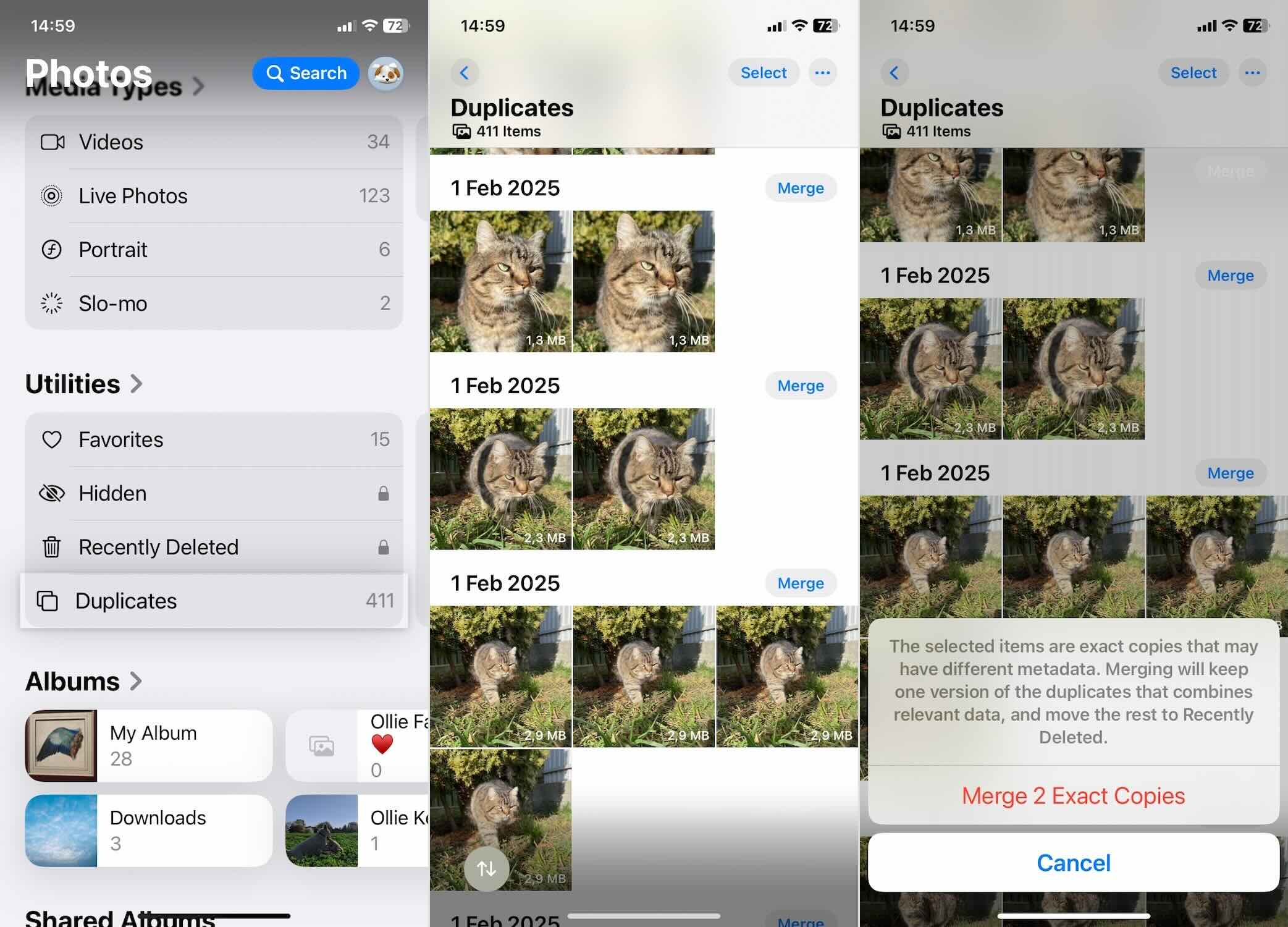
This built-in tool is a convenient way to manage duplicates directly within the iPhone’s Photos app, helping to maintain a tidy and efficient photo library.
How to Organise Photos with Custom Albums on iPhone
Custom albums on an iPhone provide a flexible way to organize photos according to personal preferences or specific themes. This section outlines how to create, add photos to, and manage these albums. If you use custom albums, you can categorize their images in a way that makes them easy to find and access without cluttering their main photo library. Whether sorting by event, date, or subject matter, custom albums streamline the photo organization process, enhancing the overall usability of the iPhone’s Photos app.
1. Create a Custom Album on the iPhone
If you create a new album, it allows for better management of large photo collections. Here’s a step-by-step guide to creating a custom album:
- Launch the Photos app on your iPhone.
- Tap on the ‘Albums’ tab at the bottom of the screen.
- Tap the plus icon in the upper left corner, then select ‘New Album.’
- Enter a descriptive name for the album and tap ‘Save.’ Choose a name that will help you easily identify the album’s contents later, such as ‘Family Vacations’ or ‘Favorite Restaurants.’

This method sets the foundation for organizing your photos and makes it easier to find specific images quickly.
2. Add Photos to Created Album
After you create custom albums, the next step is to move photos to these albums without duplicating them. This process allows you to categorize your photos effectively, keeping your library organized and accessible. Follow these steps to add photos to an album:
- Open the Photos app.
- Tap ‘Select’ in the upper right corner, then choose the photos you want to add to a specific album.
- Tap the ‘Share’ icon (the square with an arrow pointing up), then scroll down and select ‘Add to Album.’
- Pick the album you created earlier where you want these photos to go. The photos will now appear in both the selected album and the ‘Recents’ view, but they remain as single instances, so no duplicates are created.

This method organizes your photos in the albums you’ve defined, making it easier to locate specific photos when you need them.
3. Manage Photo Albums on iPhone
Once you have created albums and added photos to them, managing these albums becomes an important task to keep your photo library organized. Follow this to rename, delete, or rearrange albums on your iPhone.
Open the Photos app and select the Albums tab. Tap and hold on the album you want to manage, and a menu will appear that allows you to edit it. Choose one of the following actions:
- Edit Title – Change the album’s name and tap Done to confirm.
- Delete Album – Remove the album from your library (this does not delete the photos themselves).
- Add Photos – Add new pictures to the selected album.
If you want to change the order of your albums, simply drag and drop the albums into your desired order while in edit mode.

These steps offer control over how you organize and access your photo collections, making it simple to adjust your albums as your photo library grows and changes.
How to Use Standard Albums to Organise Photos
The iPhone comes equipped with a variety of standard albums that automatically categorize your photos, making it easier to manage and access your collection. These albums sort photos based on media type, favorites, hidden items, and smart categorizations like people, pets, and places. This section will examine how each of these pre-defined albums works and how you can leverage them to keep your photo library organized and tailored to your needs.
1. Media Types Albums
The iPhone automatically organizes photos into specific albums based on the type of media. This feature streamlines the process of finding particular kinds of content, such as videos, selfies, and panoramas. To access these albums, open the Photos app and tap on the ‘Media Types’ tab. Here, you will find categories like ‘Videos’, ‘Selfies’, Slo-mo, and ‘Panoramas’ sections.

Each album groups similar content together, which allows you to quickly locate all your videos or selfies in one place without searching through the entire photo library. This automatic sorting helps maintain an organized and accessible photo collection.
We need to mention that users do not have the ability to modify the content or organization of the ‘Media Types’ albums, as these are automatically managed by the iPhone’s system. Despite this limitation, these albums remain incredibly useful for locating specific types of photos.
2. Favourites Album in Photos App
The ‘Favourites’ album on the iPhone is a specialized location where you can store the photos and videos you frequently access. This album makes it easier to find and share your favorite photos quickly. Here’s how to mark a photo as a favorite and access the ‘Favourites’ album:
- Open the Photos app on your iPhone.
- Navigate to any photo or video you wish to mark as a favourite.
- Tap the heart icon below the photo or video. This action marks the item as a favourite, and it automatically gets added to the ‘Favourites’ album.
- To access the ‘Favourites’ album, tap on the ‘Albums’ tab at the bottom of the screen.
- Scroll to find the ‘Favourites’ album. It typically appears under the ‘Utilities or ’‘My Albums’ section.
- Tap the ‘Favourites’ album to view all the photos and videos you have marked as favourites.

This process makes your favorite photos and videos accessible in a few clicks, making it simple to revisit and share them whenever you choose.
3. Hidden Album
The ‘Hidden’ album on the iPhone offers a way to keep certain photos private by removing them from the general ‘Recents’ view. Here’s how you can hide photos and access the ‘Hidden’ album:
- Open the Photos app and select the photo or video you want to hide.
- Tap the three dots icon in the upper right corner.
- In the popup menu, tap ‘Hide.’
- Confirm your choice by tapping ‘Hide Photo’ or ‘Hide Video’ in the confirmation dialog. This action moves the item to the ‘Hidden’ album.
- To access the Hidden Album, go to the ‘Albums’ tab.
- Scroll down to the ‘Utilities’ section, where you will find the ‘Hidden’ album.
- Tap on the ‘Hidden’ album to view all the photos and videos you have hidden.
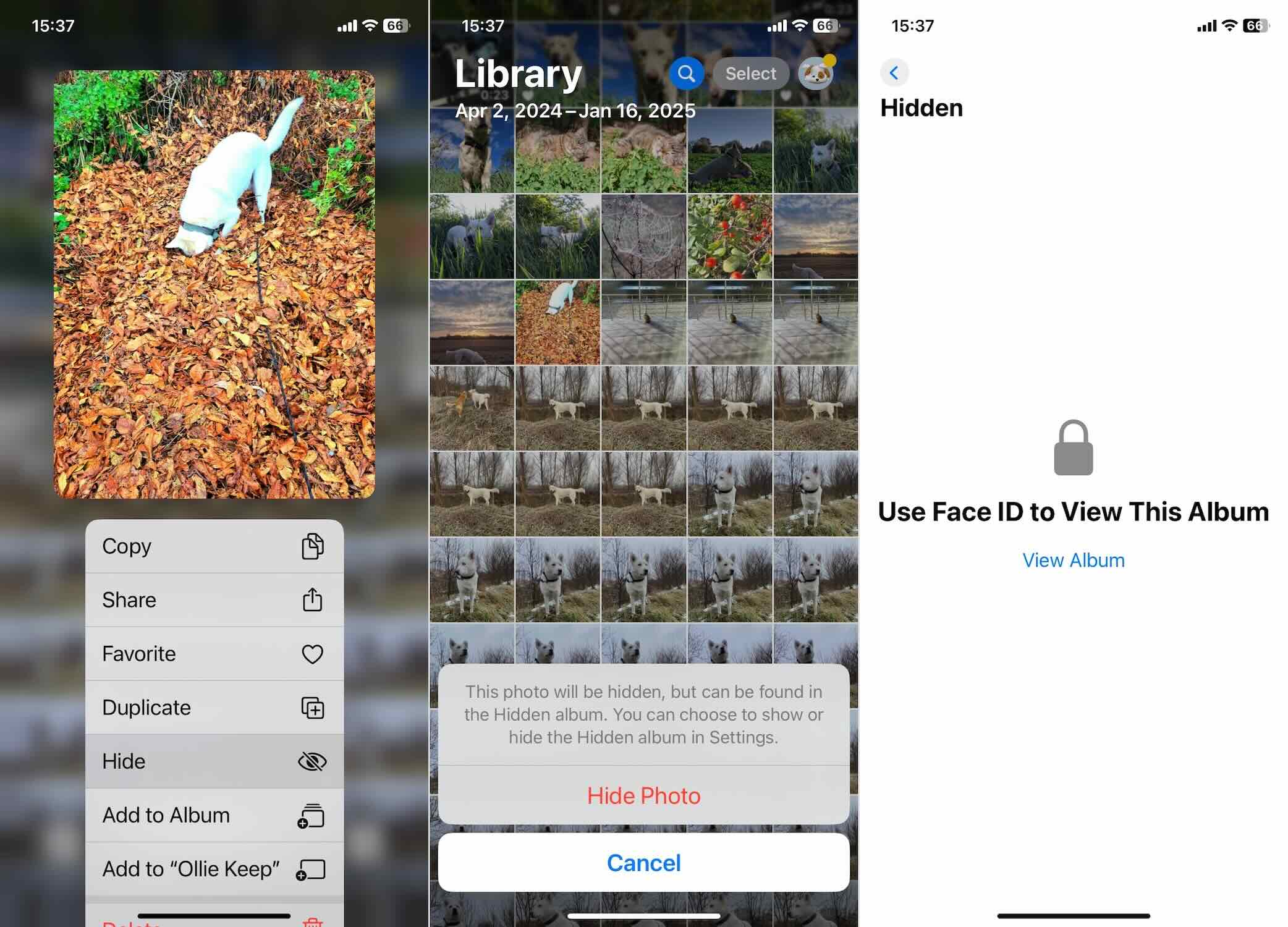
This functionality is useful for maintaining privacy and keeping sensitive images away from the main photo stream while they remain on your device.
4. People, Pets & Places Albums
The iPhone uses advanced recognition technology to automatically create albums for people, pets, and places, making it easier to find photos based on subjects or locations. Here’s how you can interact with these smart albums:
Access People, Pets & Places Albums:
- Open the Photos app and tap on the ‘Albums’ tab.
- Scroll to the ‘People & Places’ section.
- You will see albums categorized as ‘People’, ‘Places’, and if available, ‘Pets’. Each album uses facial recognition or geotagging to group photos accordingly.
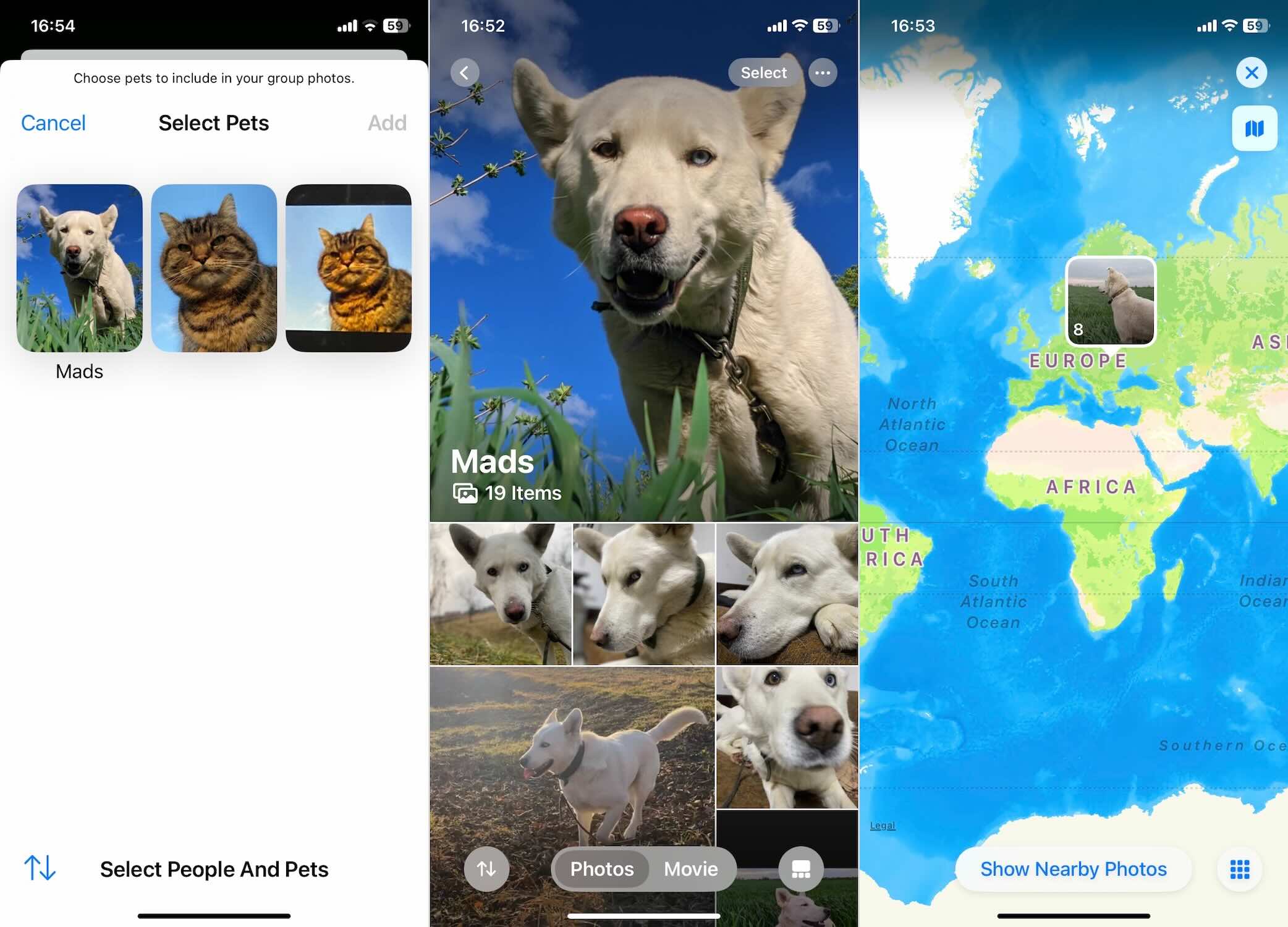
Manage People Album:
- Tap on the ‘People’ album. Here, you can see faces the iPhone has recognized.
- Tap on a person’s face to view all photos containing that individual.
- You can add a name to each face for easier identification by tapping ‘Add Name’ at the top of the photo collection. Also, you can click on the name to rename the collection.
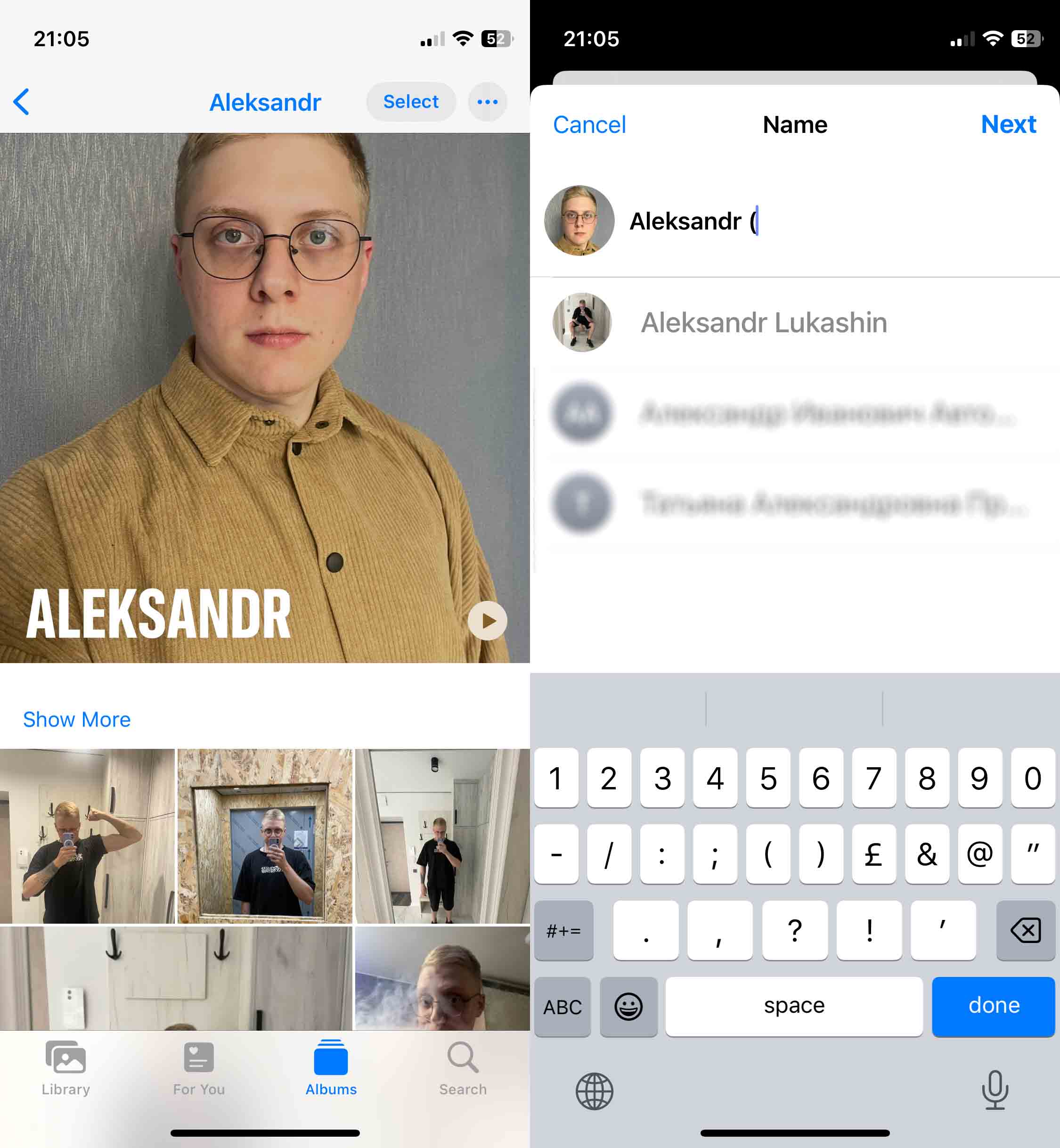
Here are additional step-by-step instructions to add a new person or pet to the ‘People’ or ‘Pet’ album on your iPhone:
- Navigate to a photo or video that includes the person or pet you want to add to the album.
- Open the photo or video to view it in full screen.
- Swipe up on the photo or video to bring up additional details and associated metadata.
- In the lower-left corner of the photo, you’ll see a thumbnail of the person’s face or pet.
- Tap on this thumbnail to bring up the option to add a name.
- Select ‘Name This Person’ or ‘Name This Pet,’ enter the name, and confirm by tapping ‘Done.’
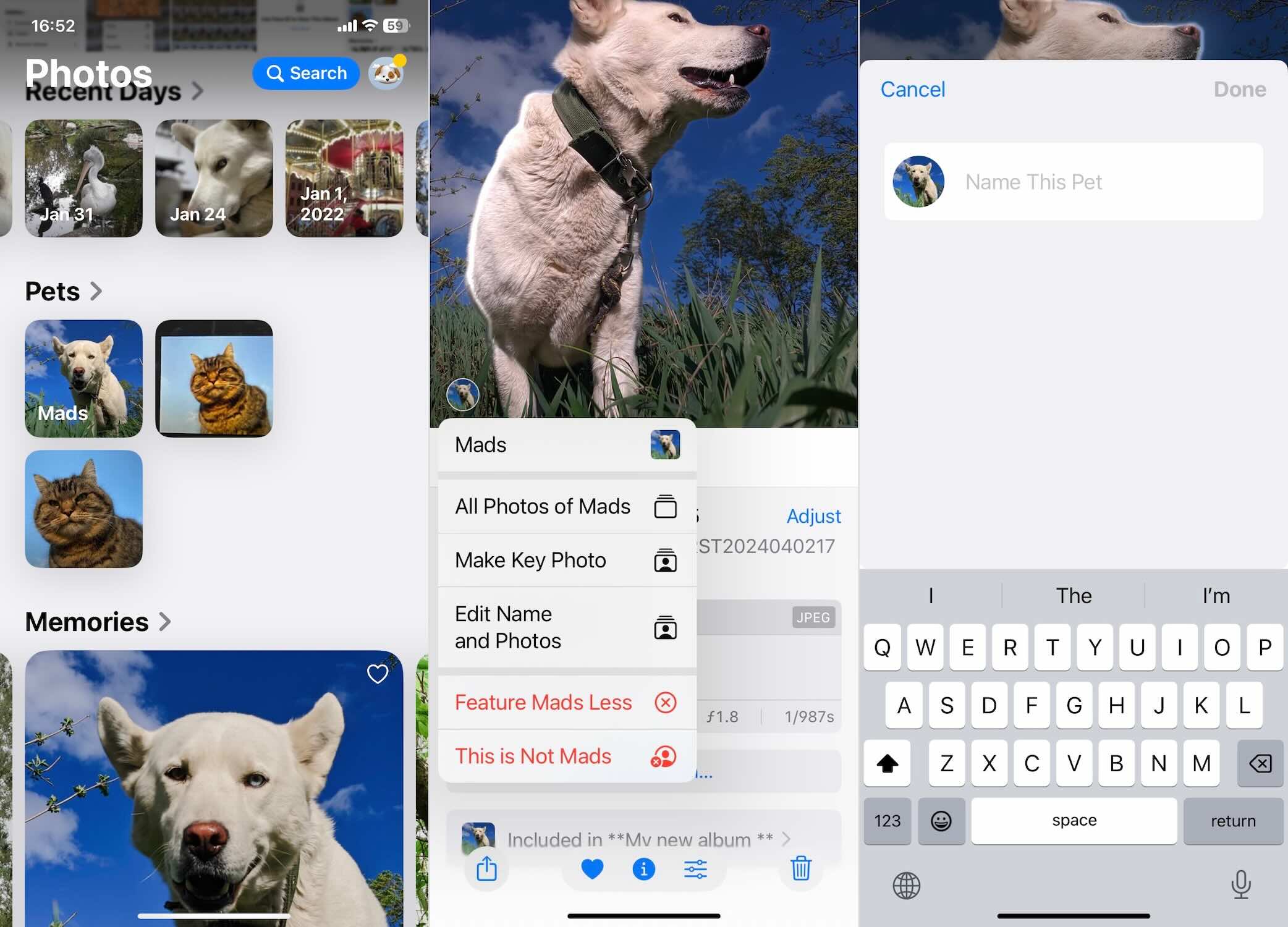
This process allows you to manually add and identify individuals in your photos, making them easier to find and organize within the ‘People’ and ‘Pets’ albums.
Explore Places Album:
- Select the ‘Places’ album to view a map or a grid of photos categorized by location.
- Zoom in or out on the map to see photos taken at different places.
- Tapping on a photo cluster shows all photos from that location.

This functionality enhances the personalization of your photo library by organizing images around familiar faces and frequented locations, thus simplifying the search for specific memories.
Duplicate-Free iPhone Photo Organization Cheat Sheet
If you like to skip to the end of the book to get all the answers quickly, here’s a cheat sheet that will help you organize your photos on iPhone without any duplicates or other mess.
First, let’s talk about what to do with already existing duplicates.
- ✅ Best method. Use third-party duplicate cleaner, like the one we covered above – Clever Cleaner (free, no restrictions) – detects both exact duplicates and similar photos that iOS won’t catch.
- ✅ Built-in option. Use the Duplicates Album in the Photos app (iOS 16+). Only works for exact duplicates and may take time to update.
- ✅ Final step. After deletion, clear the “Recently Deleted” album in Photos to free up storage immediately.
Organize Photos Into Albums
- 📂 Create a Custom Album: Open Photos → Tap Albums → Tap Create → New Album → Name it → Tap Save.
- 📂 Add Photos to an Album: Open Photos → Select images → Tap Share → Choose Add to Album.
- 📂 Rename, Delete, or Reorder Albums:
- Tap and hold an album → Tap Edit Title (to rename), Delete Album (to remove), or Add Photos.
- Drag albums into any order while in edit mode.
Use iPhone’s Smart Albums for Automatic Organization
- ✅ Media Types Albums – iPhone automatically sorts photos into Videos, Selfies, Screenshots, Panoramas, etc.
- ✅ Favorites Album – Tap ♥️ on a photo to add it to your Favorites album for quick access.
- ✅ Hidden Album – Move private photos here. Find it under Utilities in Albums.
- ✅ People & Pets Albums – iPhone auto-detects faces and pets. You can add names for easier searching.
- ✅ Places Album – View all photos on a map, sorted by location.
FAQ
For a more advanced cleanup, you can use a third-party duplicate finder app. Unlike Apple’s built-in tool, these apps identify near-duplicates—such as similar images, or photos with minor edits—that the Photos app won’t catch.
