
How to Clear ‘Documents and Data’ on iPhone
Struggling with a slow iPhone or constantly running out of storage space? “Documents and Data” is often the reason. Cached files, downloaded media, message attachments, and app storage can quietly consume a huge amount of space over time. What starts as a fast, responsive device can gradually become sluggish, simply because apps are holding onto data they no longer need. We’ll walk you through the best methods to clear Documents and Data and get your iPhone feeling fast and free again.
What Does “Documents and Data” Mean on iPhone?
But first let’s take a closer look at “Documents and Data.” It’s actually quite a broad category. If you’re like most iPhone users, the confusing part is that you probably never intentionally saved anything into “Documents & Data” in the first place. Documents and Data includes almost everything connected to an app besides the app itself.
This category can include caches, offline downloads, temporary files, saved login data, game resources, and other content that accumulates over time. It also includes user files stored inside apps, such as photos and videos in the Photos app or documents saved in the Files app. As a result, Documents and Data can grow far beyond the original App Size that appears during installation.
Here’s how to check Documents and Data usage for each app:
- Open Settings.
- Tap General.
- Tap iPhone Storage.
- Wait for the app list to load.
- Tap any app from the list.
- Check the storage breakdown. You’ll usually see the app size and the space used by its documents and data.
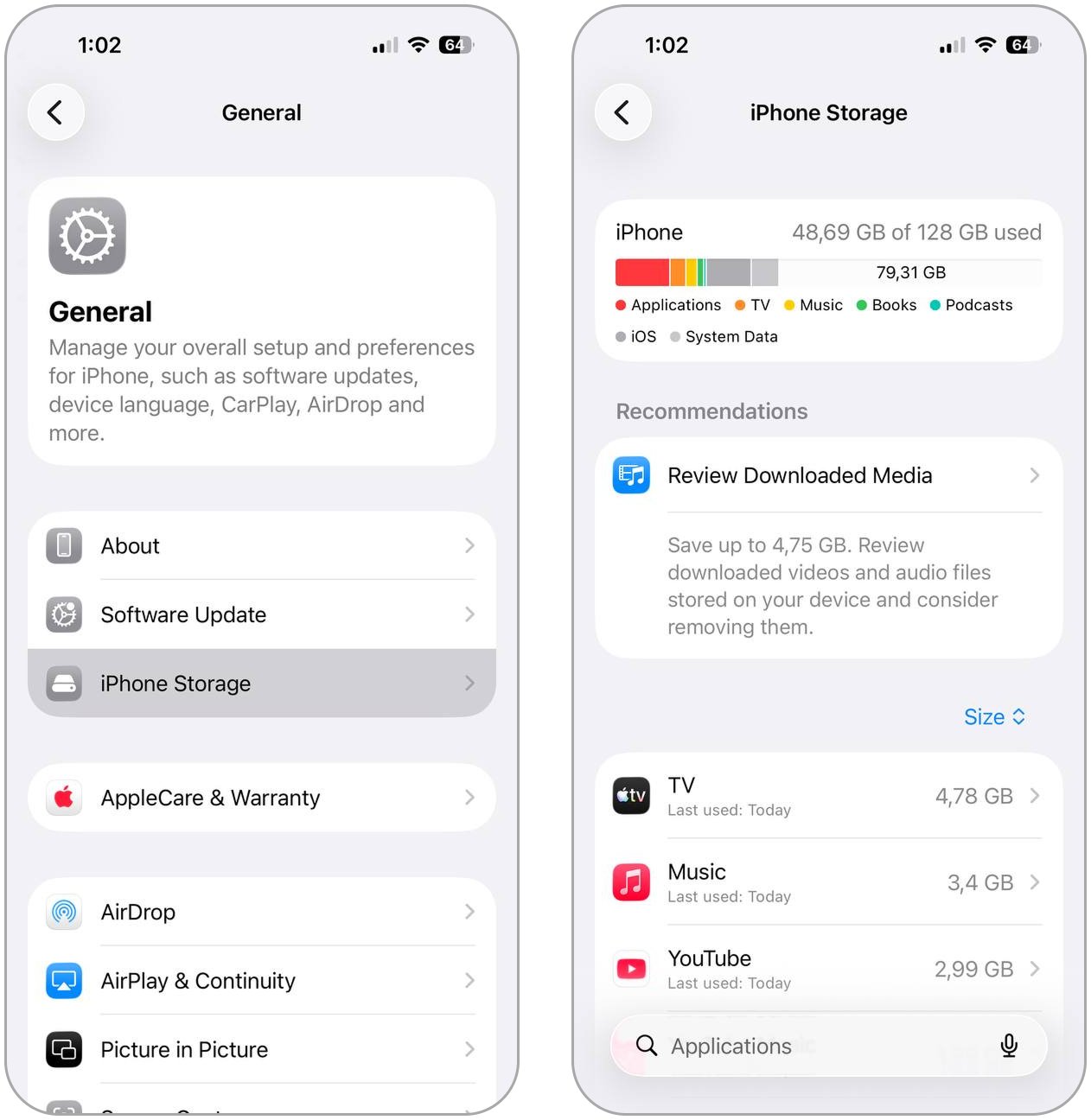
For example, a video app may show several gigabytes of Documents and Data if you downloaded videos for offline use. A messaging app may show a large number if it stores photos, videos, voice notes, and other attachments.
A Mac can show how much space Documents and Data occupy in general across the iPhone, rather than only app by app.
To see the combined Documents and Data size on your Mac:
- Connect your iPhone to your Mac with a cable.
- Open Finder.
- Select your iPhone in the Finder sidebar.
- Click Trust on the Mac and tap Trust This Computer on the iPhone if prompted.
- Open the General tab.
- Look at the storage bar at the bottom of the window.
- Hover over or review the storage categories to see how much space Documents & Data takes up overall.
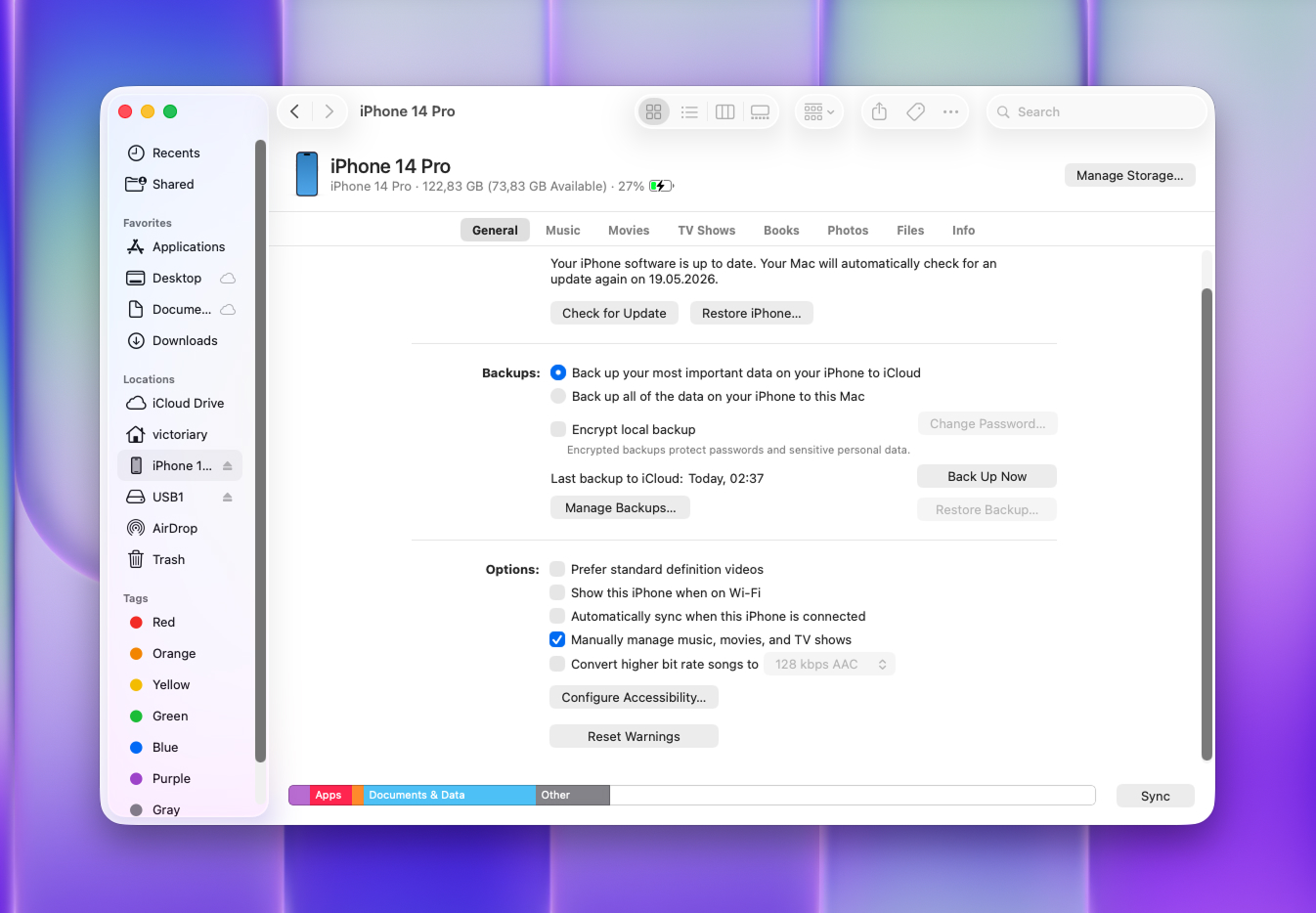
Use the Mac view to get a quick overview of your total Documents and Data usage, and switch to the iPhone Storage screen when you need to pinpoint exactly which app is eating up the most space.
How to Get Rid of Documents and Data on iPhone
There is no single button that clears all Documents and Data at once, the storage is spread across different apps, systems, and file types, so the cleanup has to be approached in steps. The methods here cover the most common ways to reclaim space. Work through the ones that apply to your situation and you’ll likely recover more storage than you expected.
Method 1: Clear Photos with Cleaning App
Cleaning apps can help with much more than duplicate photos. Since media files are one of the biggest contributors to Documents & Data storage on iPhone, these apps often target the exact types of files that quietly consume space over time: screenshots, large videos, downloaded media, and other heavy local files that many people forget about.
One of the better options currently available is Clever Cleaner. The app is especially useful for Documents & Data cleanup because it helps surface storage-heavy media that often stays buried deep inside large photo libraries. One of its most useful sections is Heavies. The app automatically scans the device for large videos and other storage-heavy media files that consume the most space.
Here is how to use the Heavies section in Clever Cleaner:
- Download Clever Cleaner from the App Store.
- Open the app and allow access to your photo library.
- Wait for the scan to finish.
- Open the Heavies section.
- Review the largest videos and media files detected by the app.
- Select files you no longer need.
- Delete them directly from the app.
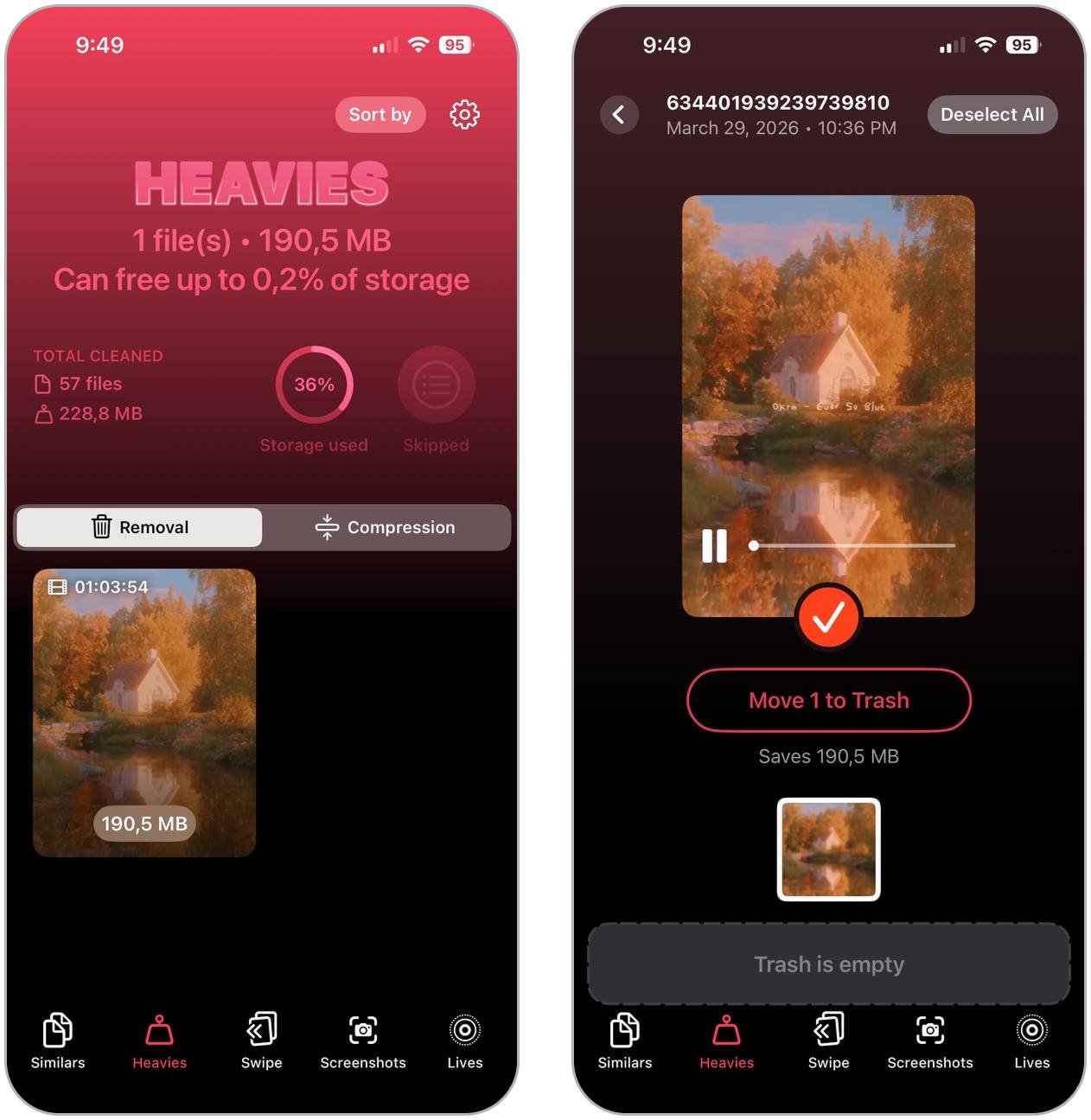
- Open the Recently Deleted album in Photos afterward and remove the files permanently to recover the storage immediately.
If large videos are important and you don’t want to delete them completely, Clever Cleaner also includes video compression that can significantly reduce file size while preserving most of the original visual quality. For more thorough cleanup, the app also offers several additional tools that target the types of media files that usually consume the most iPhone storage:
- Similars detects duplicate and visually similar photos that often accumulate after burst shots, edits, or multiple attempts at the same picture.
- Screenshots quickly brings all screenshots into the same cleanup workspace in Clever Cleaner as the rest of your photo library, which makes it easier to review and remove them.
- Lives helps reduce storage used by Live Photos, which save both an image and a short video clip together.
- Swipe Mode allows much faster manual cleanup by swiping through photos and deciding what to keep or remove more quickly than inside the standard Photos app.
Method 2: Delete & Reinstall the App
You can also delete apps and reinstall them from the App Store. This often works well for apps that accumulate a large amount of temporary data over time, such as social media apps, streaming services, browsers, or games. Unlike Offload App, which only removes the app itself while keeping its documents and data, deleting the app removes almost everything associated with it.
However, use extra caution with apps that store important local files or media. Before you delete any app, make sure your photos, projects, documents, or other important data already sync to iCloud or another backup service.
Here is how to delete the app:
- Open Settings.
- Tap General.
- Tap iPhone Storage.
- Select the app you want to clean up.
- Review how much space the app and its Documents & Data occupy.
- Tap Delete App.
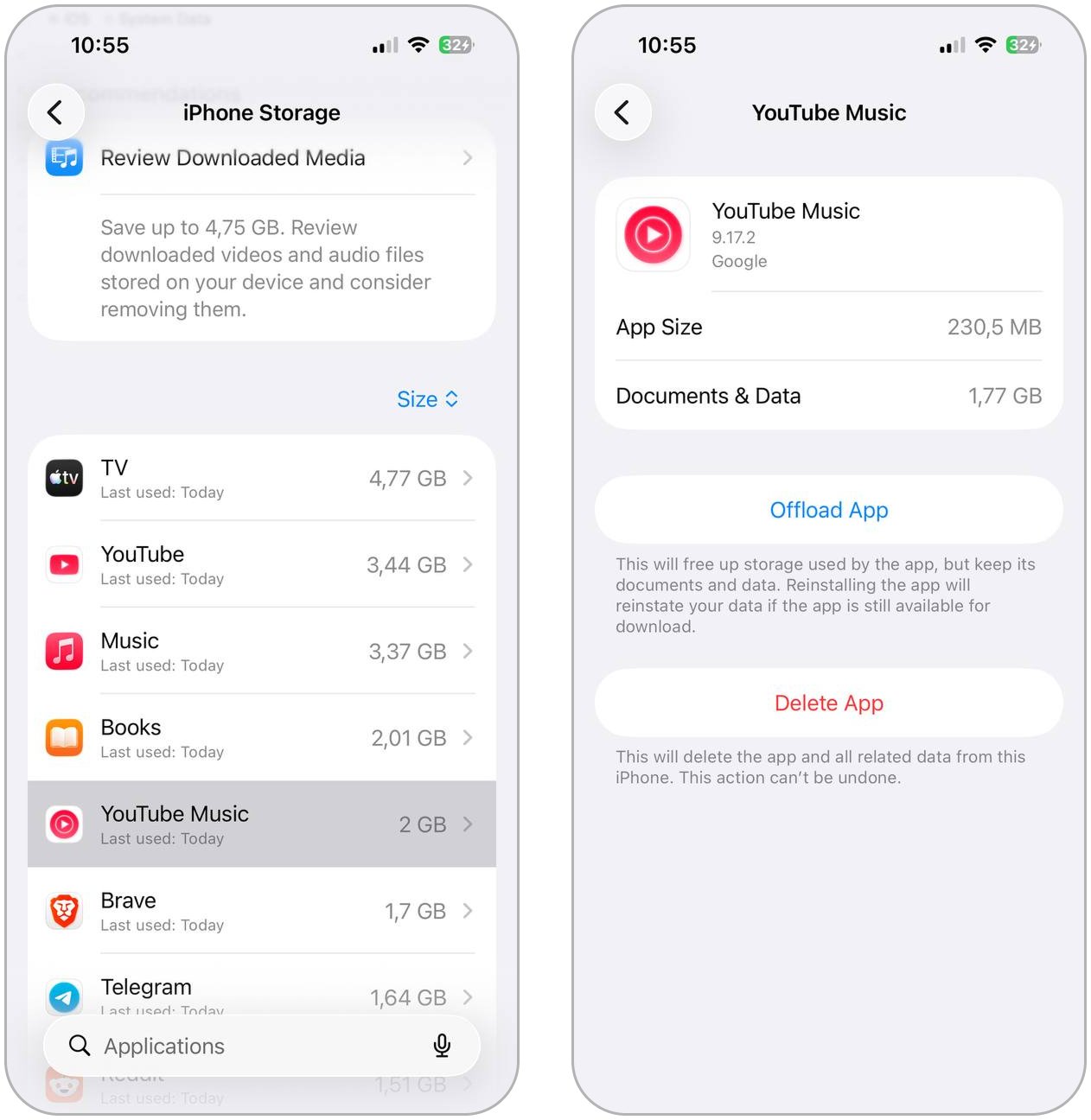
- Confirm the deletion.
- Open the App Store.
- Search for the app and reinstall it.
After reinstallation, the app usually uses much less storage because the old cache and temporary files no longer remain on the device. You may need to sign in again, and some offline downloads or locally stored content may disappear unless the app restores them through cloud sync.
Method 3: Clear Browser Cache and Website Data
If you use your browser a lot, it’s a good idea to deal with it next. Browsers continuously store cached images, website data, cookies, login information, and other temporary files to help pages load faster. Over time, this data can occupy a surprising amount of storage, especially with frequent browsing, streaming, shopping, and social media use.
Here is how to clear Safari cache and website data on iPhone:
- Open Settings.
- Scroll down and tap Apps.
- Select Safari.
- Tap Clear History and Website Data.
- Choose the timeframe if prompted.
- Confirm the cleanup.
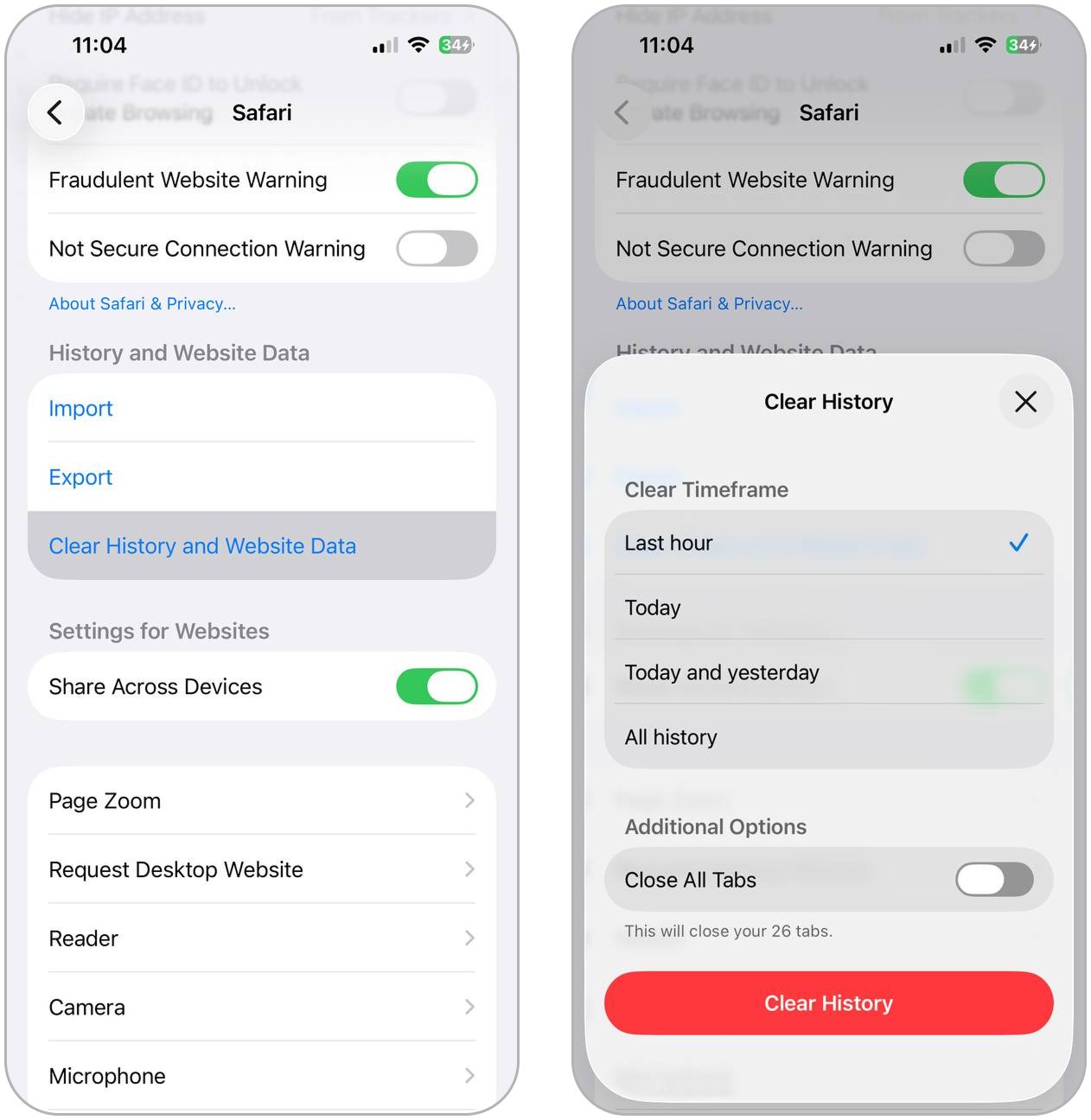
This removes browsing history, cookies, cached files, and other website data stored by Safari. Some websites may sign you out afterward because saved login sessions and cookies are also removed.
If you use Chrome instead of Safari, you can clear its cached files and browsing data directly from the app:
- Open Chrome.
- Tap the three-dot menu at the bottom of the screen.
- Tap Delete Browsing Data.
- Choose the timeframe.
- Select Cookies, Site Data and Cached Images and Files.
- Tap Delete Data again to confirm.
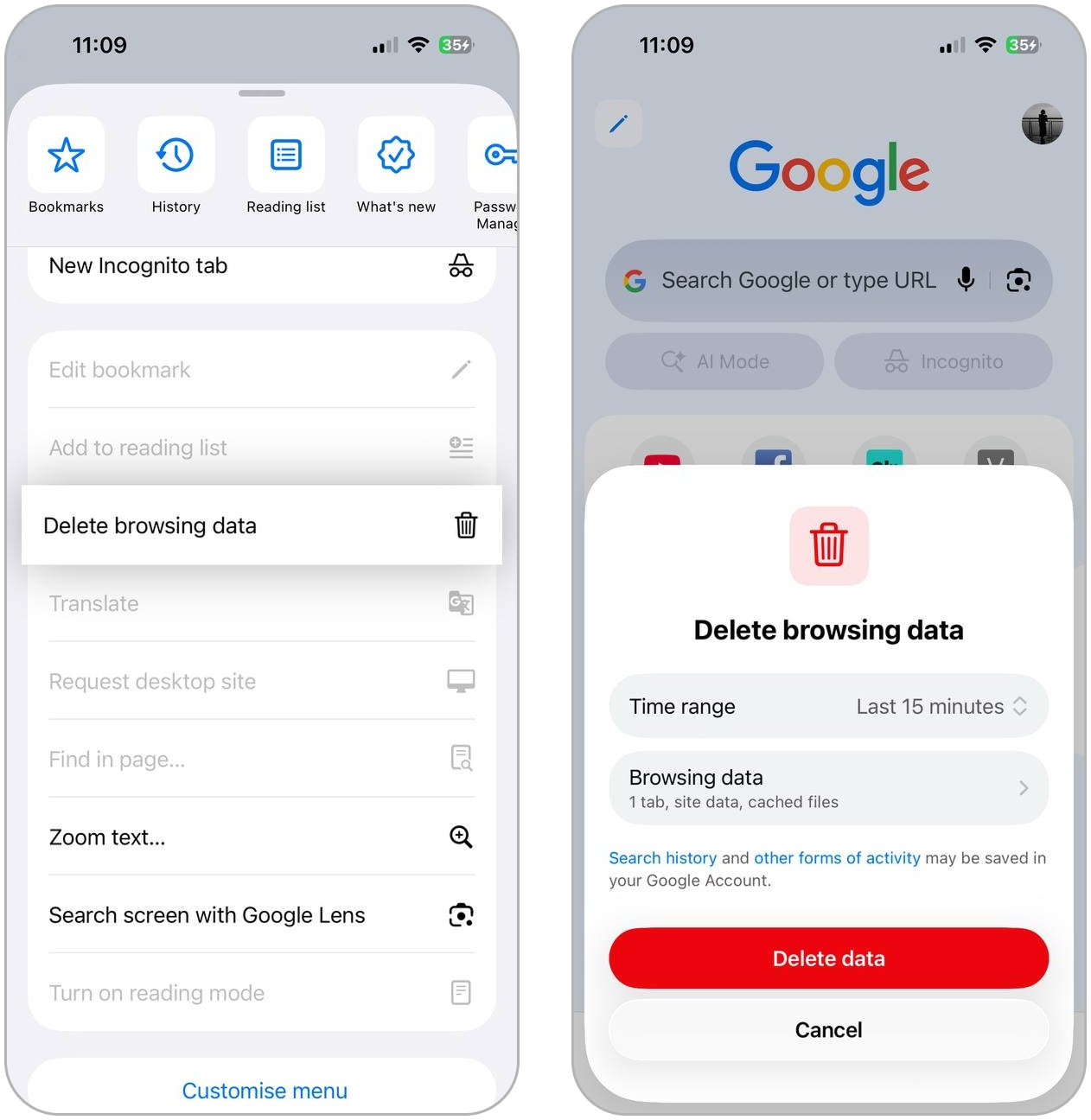
This removes cached website files, cookies, browsing history, and other temporary browser data stored by Chrome. Some websites may sign you out afterward because saved sessions and cookies are also removed. Other browsers usually include very similar cleanup options inside their settings menus under sections like Privacy, History, or Clear Browsing Data.
Method 4: Delete Large Message Attachments
Messages are often getting overlooked because many people underestimate how much storage conversations, photos, videos, GIFs, stickers, voice notes, and other attachments can occupy over time.
The Messages app stores most of this content locally on the iPhone, especially photos and videos received through iMessage. Even after you delete conversations, attachments may still remain in the Recently Deleted section for some time and continue to occupy storage.
One of the easiest ways to reduce this storage is to review and remove large attachments directly from Messages:
- Open Settings.
- Tap General.
- Select iPhone Storage.
- Open Messages.
- Review categories like Photos, Videos, GIFs and Stickers, or Top Conversations.
- Tap a category and delete files you no longer need.
You can also remove attachments directly from conversations:
- Open Messages.
- Select a conversation.
- Tap the contact or group name at the top.
- Open the shared photos or attachments section.
- Select and delete large files.
If you deleted attachments directly from conversations, don’t forget about the Recently Deleted folder either. Deleted messages and attachments can still occupy storage until permanent removal.
Method 5: Clear Large Downloads from Streaming Apps
Of course, we can’t forget about downloaded content in streaming apps. Offline videos, music, podcasts, and shows are some of the biggest contributors to Documents & Data storage on iPhone because apps store all of that media locally on the device for quick access without an internet connection.
The easiest way to reduce this storage is to remove downloads you no longer watch or listen to directly inside the app itself.
For example, in Apple TV:
- Open TV.
- Tap Library.
- Select Downloaded.
- Review downloaded movies and shows.
- Delete content you no longer need offline.
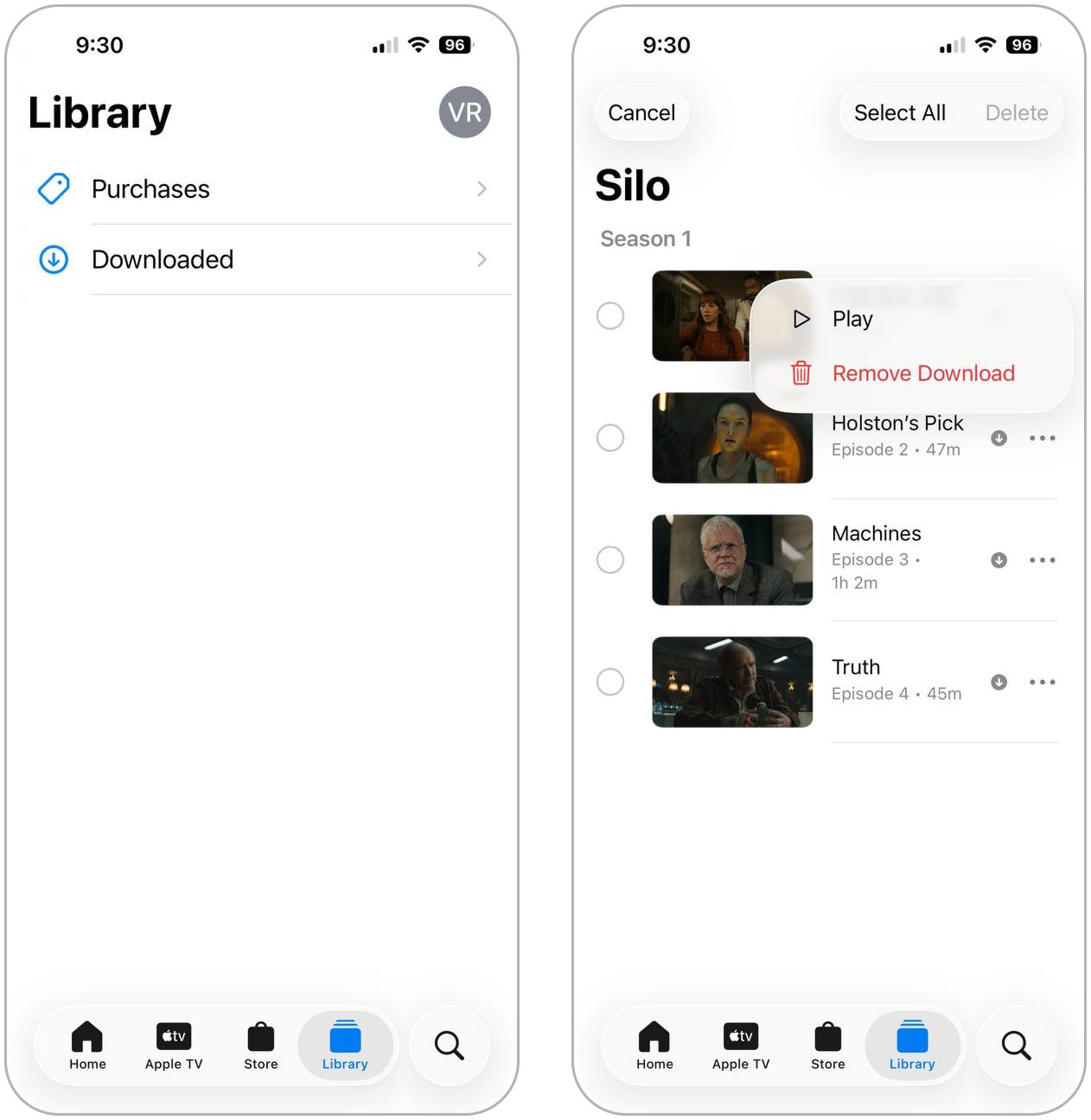
In YouTube:
- Open YouTube.
- Tap You.
- Open Downloads.
- Tap the three-dot menu next to a video.
- Select Delete from Downloads.
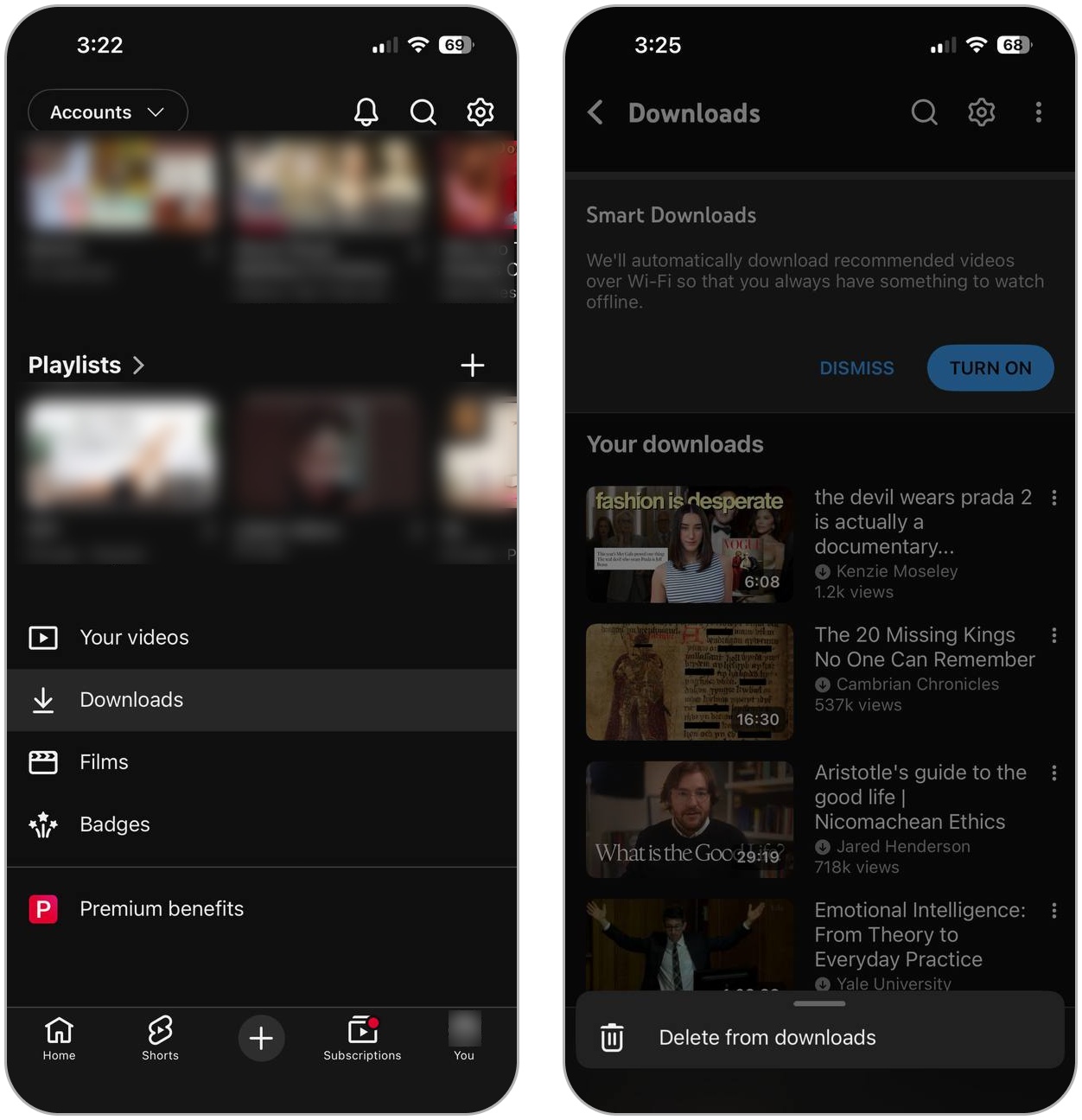
Most streaming apps include similar download management sections where you can review and remove offline content manually. Large video downloads usually consume the most storage, especially high-resolution movies, TV shows, and long playlists saved for offline access.
Method 6: Delete Downloaded Content from Files
The Files app is another place that often accumulates large amounts of hidden storage over time. Many people forget about it because downloaded PDFs, ZIP archives, videos, documents, screenshots, installers, and shared files usually stay there long after they stop being useful.
Apps like Safari, Mail, Telegram, WhatsApp, Discord, Slack, and various cloud storage services frequently save downloaded content directly into the Files app. Large video files and compressed archives are usually the biggest storage offenders.
Here is how to review and remove downloaded files on iPhone:
- Open the Files app.
- Tap Browse.
- Check Downloads or open On My iPhone to see app folders.
- Tap the three-dot menu and select Select.
- Choose files you no longer need.
- Tap the trash icon to delete them.
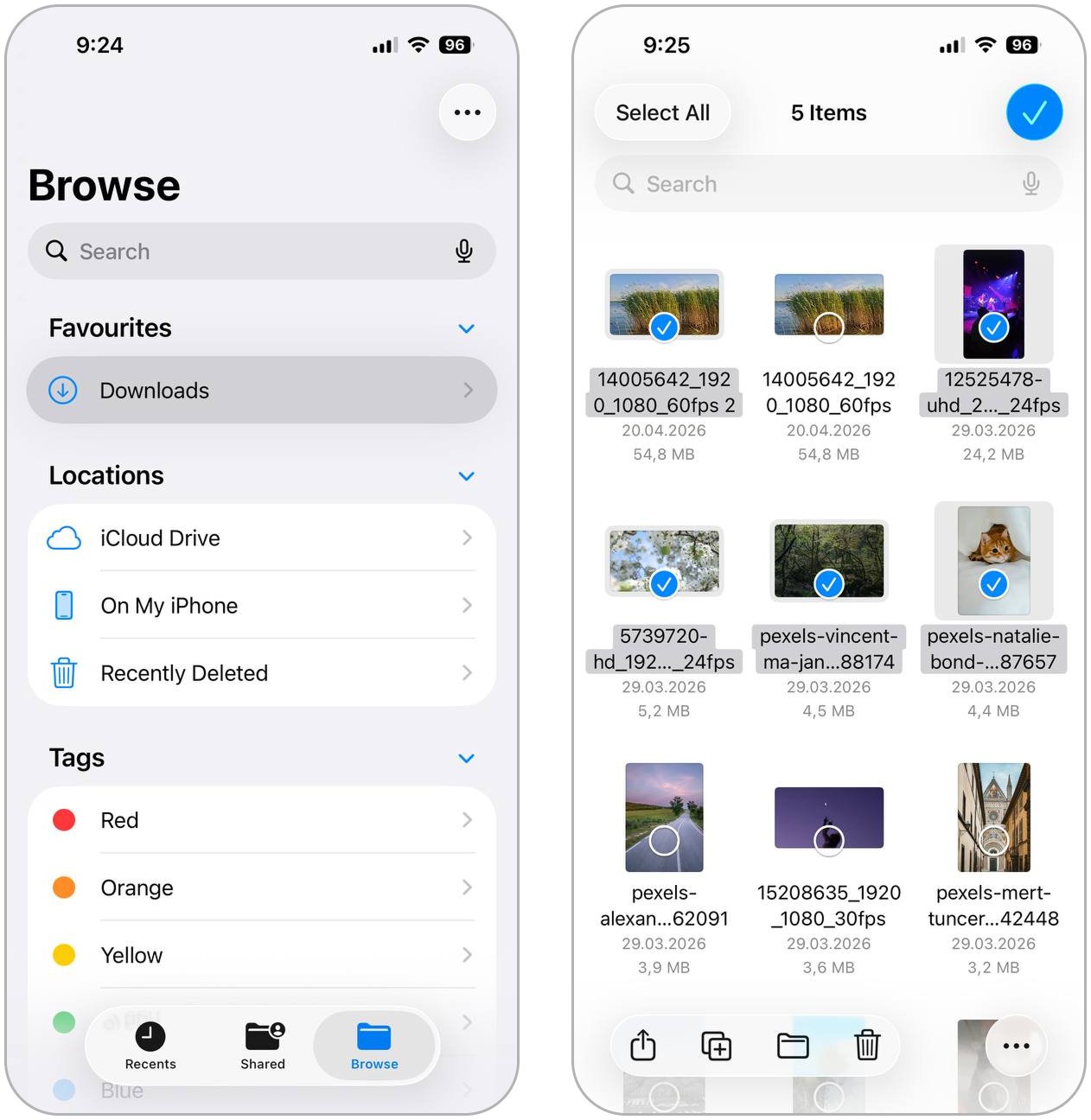
The Downloads folder deserves special attention because Safari and other apps often save files there automatically. You should also empty the Recently Deleted section afterward because deleted files continue to occupy storage until permanent removal.
Key Takeaways
Documents & Data storage can look confusing at first, but the biggest storage problems usually come from just a few categories. Here are the main things worth remembering:
- Documents & Data includes almost everything connected to an app besides the app itself. This can include photos and videos in Photos, files stored in Files, message attachments, offline downloads, caches, social media data, browser data, and game resources.
- Apps like Clever Cleaner can help reduce Documents & Data for the Photos app by surfacing similar photos, screenshots, Live Photos, and large videos, but most other categories still require manual cleanup inside the corresponding apps.
- Don’t forget to empty the Recently Deleted folders where they exist. Photos, Files, Notes, and some third-party apps continue to occupy storage until the files are permanently removed.
- Check iPhone storage periodically. Small cleanups every few weeks are usually much easier than dealing with dozens of gigabytes of accumulated Documents & Data later.
Even small cleanup sessions can make a noticeable difference when your iPhone starts feeling slow or storage warnings appear more often. You usually don’t need a factory reset or hours of manual cleanup. A few targeted methods are often enough to recover several gigabytes of space.
FAQ