
How to Clear App Data on iPhone: 3 Simple Ways
Have some of your apps ballooned in size? Or do you just want to remove an app and make sure nothing gets left behind? There are a few simple ways to clear app data on your iPhone—some obvious, some not. We’ll walk you through 3 methods and also cover a few extra ways to clean up your phone—but let’s not get ahead of ourselves. First, let’s take a look at what app data is.
Definition and Types of App Data on iOS
To manage your iPhone’s storage, you need to understand the different types of data apps store. Not all app data is the same—some files are critical, while others take up space without providing much value.
At its core, app data falls into two main categories:
- App Data: This encompasses the information saved by apps to function properly and remember user settings. For example, social media apps store your login details and preferences. Deleting app data on an iPhone can reset the app to its initial state.
- App Cache: Cache files are temporary files used to speed up app processes. They store frequently used information, like images or webpage snapshots. Clearing app cache on iOS can free up space without affecting app settings.
When should you clear app data on your iPhone? We would say there are three most common reasons why people might want to clear app data on their iPhone—performance issues, storage concerns, and privacy protection:
- App Performance Issues: Resetting app data can be a solution when apps crash or lag. This action clears temporary files that may be causing the issue, restoring app functionality. It’s especially useful for apps that are used frequently and accumulate a lot of data over time.
- Storage Management: As iPhone storage fills up, clearing app data can free significant space. This is particularly effective for apps that download and store a lot of content, such as social media or streaming apps, where data accumulates unnoticed.
- Privacy Concerns: Of course, you can lock access to specific apps to make sure no one but you can open them, but sometimes that’s not enough. If you plan to give away, or even temporarily lend your iPhone, some personal data might still be accessible. By the way, if you’re giving away your phone for good, you can completely reset it so no personal data stays on it. To do this, go to Settings > General > Transfer or Reset iPhone and choose Erase All Content and Settings. This will wipe everything, including apps and their data.
3 Best Options to Clear App Data on iPhone
OK, now that we know all the basics, let’s get to practice. There are three main ways to clear app data on an iPhone, each suited for different situations. Some apps let you delete their cache directly, while others require system-level removal. iCloud-stored app data can also be cleared separately. Here’s how to do it.
Option 1: Delete App Data from Specific App Settings
Some, but not all, apps let you clear cached files, downloaded content, or other unnecessary data right from their settings. This is the easiest way to remove junk without uninstalling the app, but it all depends on the specific app. If it’s possible, you’ll usually find it in the app’s settings under something like Storage, Data, or Downloads—though different apps call it different things.
Social Media Apps
Many social media applications allow users to manage their data directly through in-app settings. For example, in the Snapchat App, you can access settings to clear the cache, thereby freeing up space.
- Open the app and navigate to your profile.
- Tap on the Settings or gear icon.
- Scroll down and select Clear Data under the Privacy Controls section.

- Tap on a specific cache type like Lens Cache or just All Cache.

- Confirm deletion.
Streaming Apps
Streaming applications, such as Netflix or Spotify, store offline content like downloaded shows or music. Clearing this downloaded content from the app settings can help in reclaiming storage space.
- Open the streaming app.
- Go to Downloads or Library.
- Select and delete downloaded shows or music.
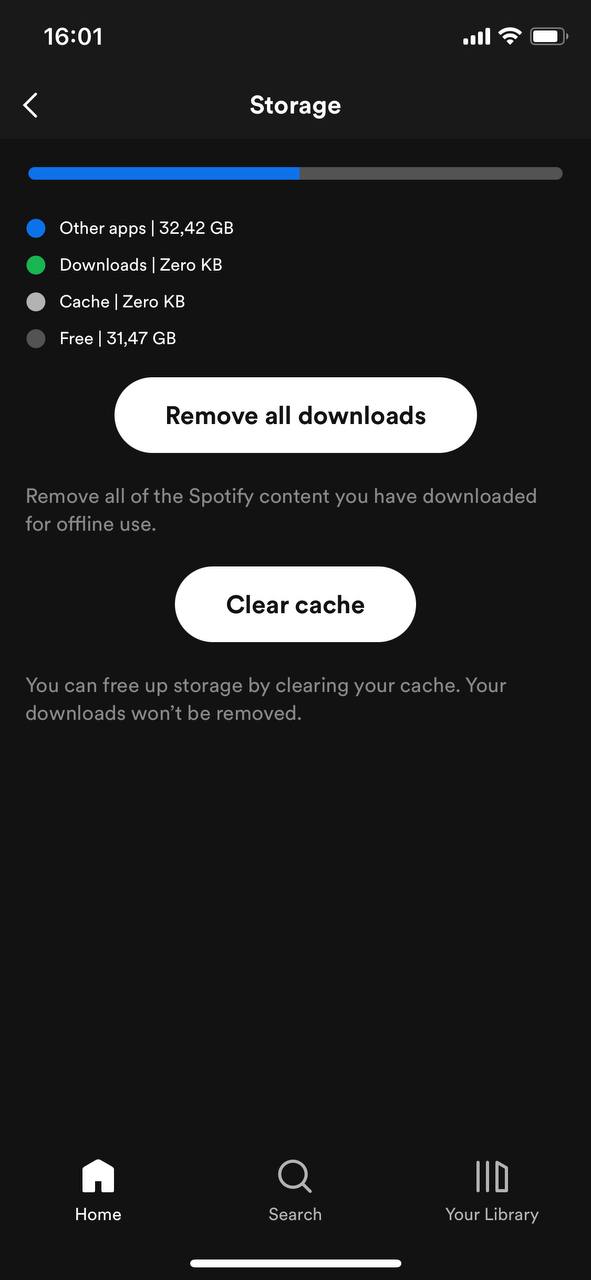
 Once that limit is reached, the app will automatically clear the oldest, unused data. Check your app’s storage settings maybe it can do it as well.
Option 2: Delete App Data in iPhone Settings
If an app doesn’t offer built-in options to clear cache or stored data, iPhone settings provide another way to manage it. Yes, by deleting it.
- Open Settings and go to General > iPhone Storage.

- Browse the list and select the app whose data you want to clear.
- Tap Delete App to remove the app and all its associated data.

- Reinstall the app from the App Store if needed, starting fresh without the old data.
Option 3: Clear App Data from iCloud
If an app stores data in iCloud, removing it from your iPhone won’t necessarily delete everything. Some apps sync files, backups, and settings across devices, and keep them in iCloud even after you delete the app itself. If you want to remove app data completely, you’ll need to clear it from iCloud as well.
- Open Settings and tap your name at the top.
- Go to iCloud.

- Then tap Storage or Manage Storage (the exact option depends on your iOS version).
- Scroll down and select the app storing data in iCloud.

- Tap Delete Data From iCloud, then confirm.

This permanently removes the app’s data from iCloud, which means you won’t be able to recover it later. If the app is still installed on another Apple device, it might sync new data to iCloud after deletion. To stop this, go to Settings > [Your Name] > iCloud and disable iCloud access for the app before deletion.
Can I Use Third-party Apps to Clear App Data?
No, you might have seen apps claiming to clean junk files and free up storage on your iPhone. While they can clean up a lot of things, iOS doesn’t allow third-party apps to clear app data or cache directly. Apple keeps app data locked down for security and privacy reasons. Unlike Android, iOS sandboxes every app, which means each app operates in its own isolated environment. This design prevents one app from accessing another app’s data or modifying system files. While this improves security, it also means that third-party cleaning apps can’t directly clear cache, delete app data, or reset an app’s storage.
And any app that claims to do so… well, you should avoid it. If an app promises to “deep clean” app cache or free up storage that iOS itself doesn’t give you access to, it’s likely misleading at best—or a privacy risk at worst.
More Ways to Free Up Storage Beyond App Data
While we’re on the topic of third-party apps, we ACTUALLY DO recommend using them—just not for clearing app data. They can’t remove app cache or reset app storage, but if you’re looking to free up space, these tools can often find gigabytes of files you can delete with no downside.
We’ve tested dozens of cleaner apps on the App Store and even have a separate rating for AI-powered cleaners. Some of the best, in our opinion, include Clever Cleaner, CleanMy®Phone: Storage Cleaner, and Clean Up Storage – Cleaner Kit.
If you’ve never tried these types of apps before, Clever Cleaner: Free Storage Cleaner App is the best one to start with. It’s capable, fast, and made both of our rankings—one for traditional storage cleaning and one for AI-powered features. What sets it apart? Unlike most similar apps, Clever Cleaner is completely free. There are no paid features, no in-app purchases, and no ads. That means you can test it risk-free without worrying about hidden costs. It focuses on what takes up the most space, and after app data, the biggest storage stealer is your media library. Here’s what it targets:
- ✅ Duplicate & Similar Photos (Similars) – Unlike the Photos app, which only detects and merges identical duplicates, this app finds both exact duplicates and visually similar photos, like shots taken from different angles or with slight variations. It groups similar photos together and gives you the option to either: delete them all automatically in one tap, or use an “almost-automatic” mode, where you review and decide what to keep or remove. It uses AI to analyze photos and even suggests the “Best Shot” to keep. In our experience, it’s usually highly accurate.

- ✅ Large Video Files (Heavies) – Finds and highlights big video files that take up storage but may no longer be needed. Unlike the Photos app, which doesn’t allow you to sort by size, this tool lists all your videos from largest to smallest, so you can quickly delete the biggest space-wasters.

- ✅ Live Photos – It can compress Live Photos and free up a lot of space in the process. The app calls it “Compress,” but what it actually does is convert Live Photos into normal still images without the short video clip that plays when you open them. This saves a huge amount of space without reducing quality.

- ✅ Screenshots – It easily identifies all the screenshots you’ve taken. Unlike the Photos app, which mixes screenshots with regular photos, this tool sorts them all in one place, so you can review and delete them in bulk.

That’s all four features you can use right now to free up space. But based on this statement from its official Clever Cleaner cleanup app page: “Download Clever Cleaner today and enjoy lifetime access for free. Early users will never be asked to pay for upgrades or new features.” We believe the developer (CleverFiles) plans to add more tools in the future. We’d love to see features found in competing apps, like video compression, similar video detection, and contact cleanup. Still, not bad for a free app. And if what they say about it staying free—even as new features are introduced—turns out to be true, it might be worth keeping on your phone just in case. Need details on Clever Cleaner? Visit our review here.
The Bottom Line
If you’re the type to skip to the end of the book, here’s a quick summary of your options. The best method depends on your goal—whether you’re trying to free up storage or clear app data completely.
✅ If you just want to free up storage:
- Use built-in app options – Some apps let you clear cache or downloaded files in their settings (Facebook, Snapchat, YouTube, etc.).
- Use a third-party cleaner – Apps like Clever Cleaner can help remove duplicate photos, large videos, Live Photos, and old screenshots.
✅ If you want to clear app data completely:
- Delete the app – This removes all cached data and resets the app (Settings > General > iPhone Storage > Delete App).
- Clear iCloud backups – If the app syncs data with iCloud, delete it from Settings > iCloud > Manage Storage to remove stored files across devices.
And if you want to delete your app data because you’re handing over your phone to someone else for good, it’s definitely better to reset it completely rather than clearing app data one by one. This wipes everything—apps, accounts, personal files, and saved settings—so nothing gets left behind.
FAQ
That said, some third-party tools can safely help free up storage by finding duplicate photos, large files, or unnecessary screenshots. Apps like Clever Cleaner and Clean Up Storage – Cleaner Kit can help clean up media clutter, but they won’t reset app storage or delete app cache.