
8 Best Data Recovery Software for Mac: Key Features and Recovery Results
You probably noticed how many options exist for file recovery software for Mac, more than at any point in the past, yet a large part of that list no longer feels relevant or reliable. Our team at InsanelyMac runs recovery tools through real fault scenarios every week, and on this page, we cover the tools we consider the best data recovery software Mac users can rely on today.
The list includes options that work well for home users and others that handle more demanding cases.
Quick Overview of Mac Data Recovery Software We Will Cover in This Article
Before we go through each tool on this list, here’s a quick look at the eight top options that caught our attention, which we think can be called the best Mac recovery software based on our hands-on experience with every one of them.
| Software | Recovery Performance (★★★★★) | Usability (★★★★★) | Supported File Systems | Pricing | Standout Features |
| Disk Drill for Mac | ★★★★★ | ★★★★★ | HFS+, APFS, NTFS, FAT32, exFAT, and more | $89 (Pro), Free version with limited recovery | Advanced Camera Recovery, Byte-to-byte backup, S.M.A.R.T. monitoring, Data Protection, excellent UI |
| PhotoRec | ★★★★½ | ★★ | File system irrelevant (works via signature scan only) | Free, open-source | Open-source, free, Great for deeply corrupted drives |
| UFS Explorer Standard Recovery | ★★★★ | ★★★½ | HFS+, APFS, EXT, FAT, NTFS | $64.95 (Standard), Free trial with limited recovery | Strong RAID recovery, works with FileVault2 |
| R-Studio for Mac | ★★★★½ | ★★★½ | HFS+, APFS, FAT, EXT, NTFS, ReFS | $79.99 (Standard), Free trial with limited recovery (only files under 256 KB) | Hex Editor, RAID recovery, cloning |
| Wondershare Recoverit Data Recovery for Mac | ★★★½ | ★★★½ | HFS+, APFS, NTFS, FAT32, exFAT | Starts at $54.99/month, Free trial with limited recovery | Built-in video repair, Enhanced Video Recovery, sleek UI |
| iBoysoft Data Recovery for Mac | ★★★½ | ★★★½ | APFS, HFS+, HFSX, FAT32, exFAT, NTFS | Starts at $89.95 (monthly), no lifetime license; free trial | Simple Mac‑native UI; Save and reload scan sessions |
| EaseUS Data Recovery Wizard for Mac | ★★★½ | ★★★★ | HFS+, APFS, NTFS, FAT32, exFAT | Pro version starts at $89.95/month, Free version with limited data recovery | Reliable recovery, beginner-friendly |
| FonePaw Data Recovery for Mac | ★★★½ | ★★★ | HFS+, APFS, NTFS, FAT32, exFAT | $63.95/month, Free trial with limited recovery | Fast scans, simple design, decent basic recovery |
8 Best File Recovery Software for Mac
Now, let’s take a closer look at each of the top contenders. Every tool on this list is worthy of your time, but, let’s be real – some impressed us more than others. As you scroll down, you’ll notice that the closer the app is to the top, the more we liked it. Think of it like a recovery software Olympics: gold, silver, bronze… and then some solid participation medals.
1. Disk Drill for Mac
Recovery speed: High | Supported file systems: HFS, HFS+, APFS, NTFS, NTFS5, FAT12, FAT16, FAT32, exFAT, EXT3/EXT4 | Requirements: the latest version requires macOS 10.15.7-26.x. | Price: Free version (can scan but not recover data), Pro version $89, Enterprise version $499
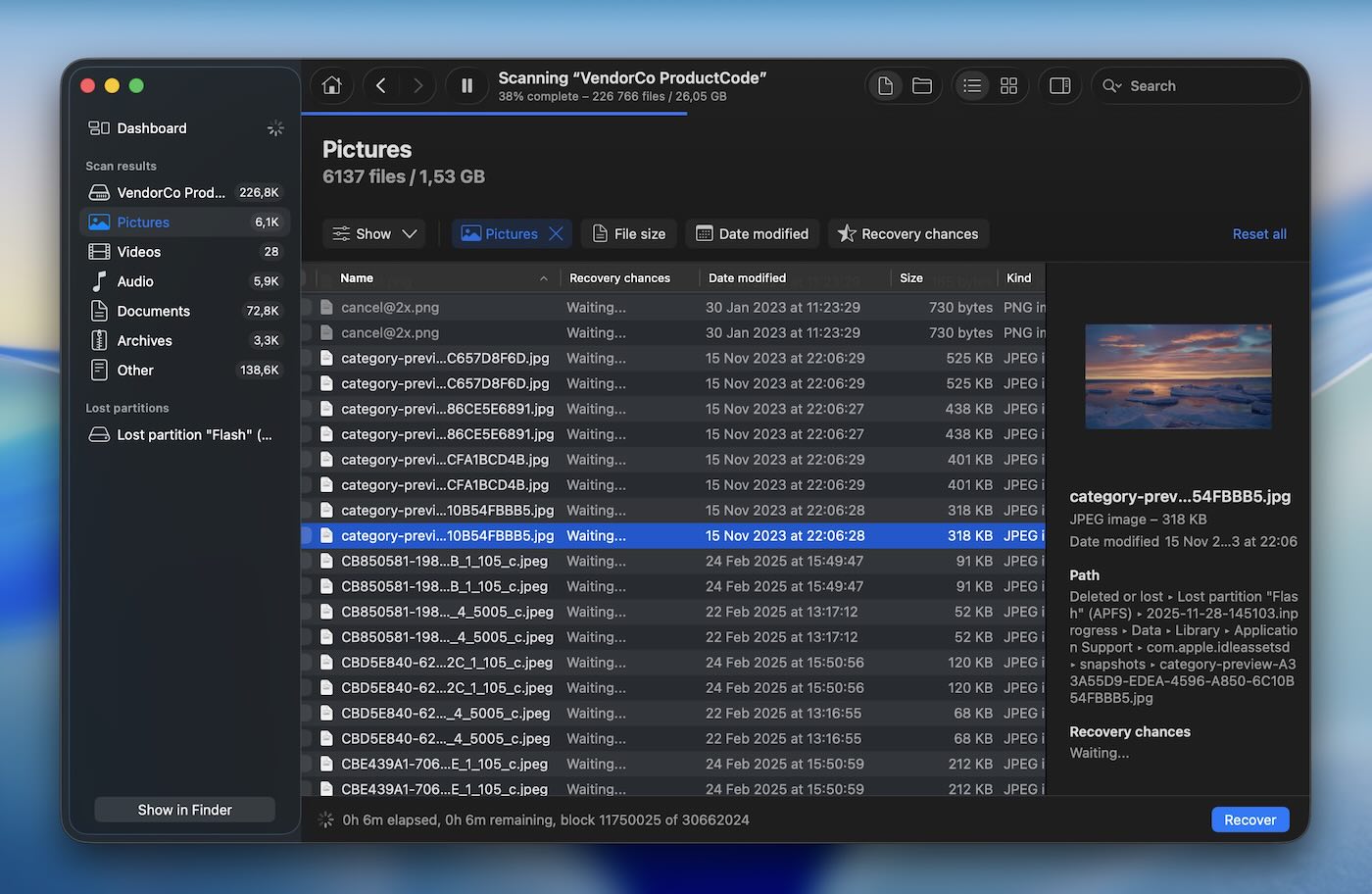
Disk Drill takes the top spot for a reason – it consistently performs across all types of data recovery scenarios. Whether you have a case of a corrupted hard drive, accidentally deleted files, or even a formatted partition, Disk Drill has the tools to get your data back. Developed by CleverFiles, Disk Drill has been around since 2010, and over the years, it has built a reputation of a powerful and easy-to-use tool. In our opinion, this balance between features and simplicity makes it one of the best choices for Mac data recovery.
✅ Key Features:
- Quick, Deep, and Signature Scan modes for different recovery scenarios.
- Organizes scan results into three main categories (Deleted/Lost, Existing, and Reconstructed) and offers advanced filters for easier search.
- Byte-to-byte backup feature creates a full copy of your drive (recently overhauled, one of the best in its class).
- Supports multiple file systems.
- Disk Drill generates previews for all supported file formats and offers multiple view options to scan and preview recoverable files.
- S.M.A.R.T. monitoring for a disk health check.
- Advanced Camera Recovery mode can reconstruct fragmented video files from GoPro, DJI, Canon, Panasonic, Insta360, Sony, Olympus, and other camera sources.
📈 Recovery performance. We’ve used Disk Drill countless times, and it has yet to disappoint us. Its recovery performance is impressive, with Quick, Deep, and Signature Scan options that cover all types of data loss scenarios (you won’t need to choose anything – the app cycles through all of them). Quick Scan effortlessly recovers recently deleted files, while Deep Scan handles more complex situations with precision. The Signature Scan’s accuracy, particularly in detecting complex formats like RAW photos and professional video files such as CR3 and ARI, left us impressed. One particular scenario that stands out was recovering a 60GB Apple ProRes video from an external drive – Disk Drill pulled it off flawlessly. The scanning speed is another area where Disk Drill shines, even with large multi-terabyte drives.
And with the recently introduced Advanced Camera Recovery mode, anyone working with GoPro, DJI, or Sony footage will appreciate how it reconstructs fragmented videos that most tools miss. In our tests, it handled action cam footage and mirrorless RAW video just as reliably as standard files. Great choice for anyone from casual users to professionals (especially photographers/videographers).
🖥️ Usability. No pop-ups, no ads, just a clean and intuitive interface. The software guides you through every step. We love the dark mode, which is easier on the eyes during long recovery sessions. One of our favorite features is real-time results; there’s no need to wait for the scan to finish to see what was found. Plus, the preview feature is the best we’ve seen in software of this type.
🤝 Compatibility. Disk Drill is often updated and works flawlessly with the latest macOS Tahoe (26). It supports HFS, HFS+, APFS, NTFS, NTFS5, FAT12, FAT16, FAT32, exFAT, EXT3/EXT4, which makes it versatile for data recovery from traditional hard drives, SSDs, memory cards, USB drives, and even Linux-based systems. Additionally, Disk Drill works with iOS and Android devices, RAID arrays, and NAS.
🏷️ Price. Disk Drill offers a free version that allows you to scan and preview recoverable files, though actual recovery requires an upgrade. The Pro version is available for $89, with full recovery capabilities and lifetime updates for individual users. For businesses or advanced users, the Enterprise version is priced at $499.
- Great recovery results
- Modern interface
- Regular updates
- Native support for Apple Silicon Macs (M1-M5)
- Great additional features
- Scans can be paused and resumed
- Raw photo support
- Multiple view options
- Around 400 supported file formats
- Improved stability when working with damaged disks
- All extra features are fully unlocked in the free version
- No bootable disk option
2. PhotoRec
Recovery speed: Slow | Requirements: all 32- and 64-bit versions of macOS and Mac OS X are supported | Price: Free
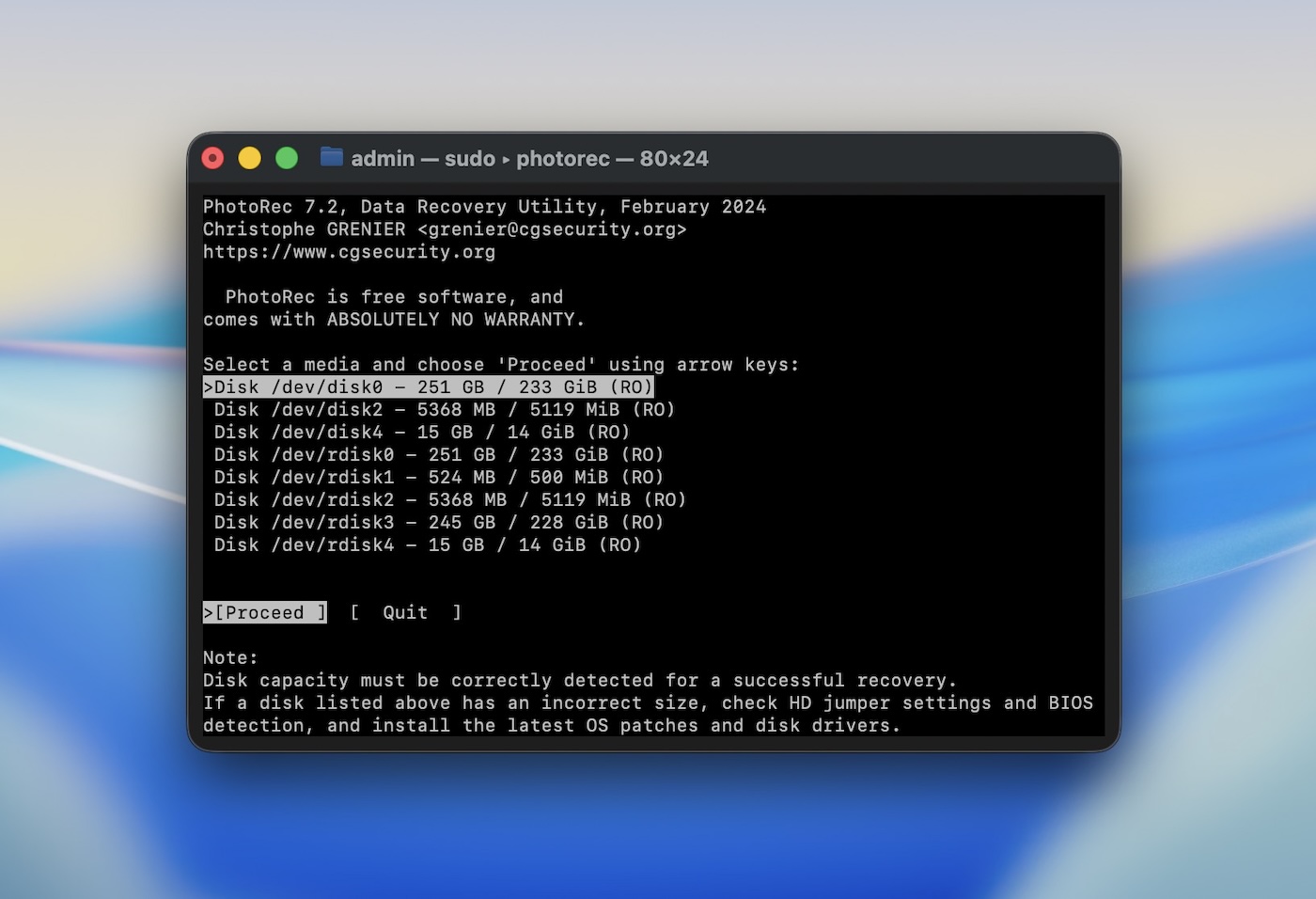
Second on our list is PhotoRec, a powerful open-source data recovery tool developed by CGSecurity (mostly the work of one developer, Christophe Grenier). Unlike commercial options with sleek, polished interfaces, PhotoRec only works through the command line in Terminal. Yes, it’s not the easiest tool to use, but its reliability – combined with the fact that it’s completely free – are what earn it a place on our list.
✅ Key Features:
- Capable of recovering over 480 file extensions across various media.
- Non-destructive recovery process that never writes to the damaged drive.
- Works in tandem with TestDisk to rebuild lost partitions (a separate utility from the same developers).
- Cross-platform support for macOS, Windows, and Linux.
📈 Recovery performance. Though not the fastest option on the market, PhotoRec delivers strong recovery results, especially in complex cases. Unlike the previous tool, Disk Drill, which offers multiple scan modes, PhotoRec only has a signature scan. This means it recovers files solely based on their signatures (file names, folder structures, metadata won’t be recovered). In our tests, PhotoRec successfully recovered lost JPEGs, PDFs, and RAW image files from a corrupted SD cards and HDDs, even after formats. However, it took longer to complete scans compared to some premium options.
🖥️ Usability. PhotoRec is a no-frills, command-line-based tool, which may intimidate some users at first. However, for those who are comfortable following step-by-step prompts, it’s straightforward and easy to use.
🤝 Compatibility. it works on nearly every operating system you can think of – whether you’re on macOS, Windows, or Linux. You’ll also often find it bundled with TestDisk on LiveCDs and Live USB environments like ALT Linux Rescue or CAINE.
🏷️ Price. As an open-source tool, PhotoRec is completely free. Donations are welcomed by CGSecurity to support the ongoing development of the software, but there are no hidden fees or paid tiers.
- Free and open-source
- Lightweight
- Excellent at recovering lost files from formatted or damaged drives
- Supports multiple file systems and over 480 file types
- Reliable deep scan for severe data loss scenarios
- Works across macOS, Windows, and Linux
- Lacks a graphical user interface (command-line based)
- Slower scanning speeds compared to commercial alternatives
- No file preview before recovery
- Only signature scan mode
3. UFS Explorer Standard Recovery
Recovery speed: Adequate | Supported file systems: HFS+, APFS, ext2/3/4, NTFS, FAT12/16/32, exFAT, ReFS,Btrfs, XFS | Requirements: macOS 10.7 to 10.15 | Price: Free trial available (limited features); Paid versions from $64.95
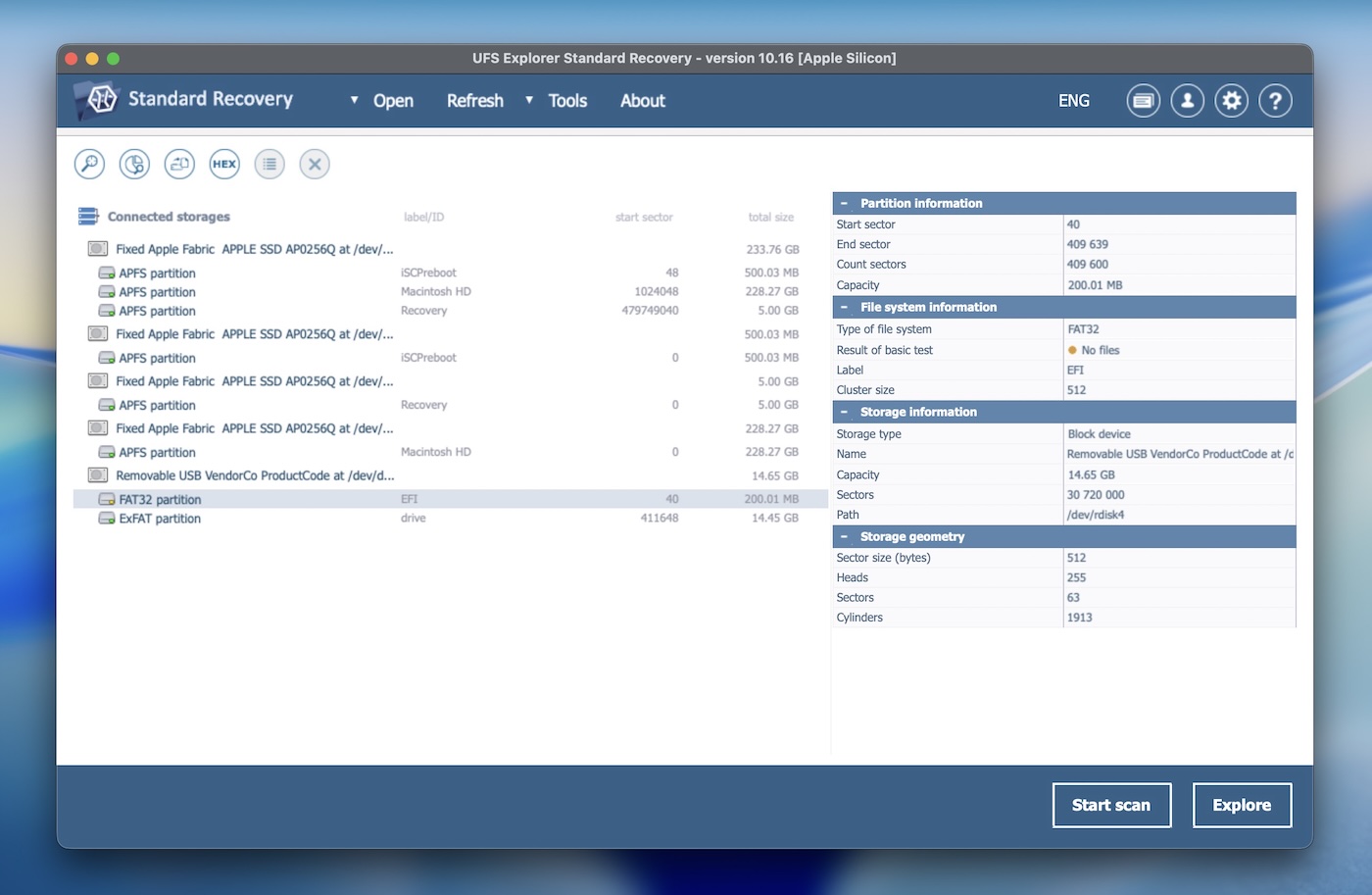
Next, we have UFS Explorer Standard Recovery, developed by SysDev Laboratories, a software company founded in 2004. This data recovery solution stands out for its versatility. UFS Explorer has gained a solid reputation among both professionals and home users. That said, it leans more technical than most. Home users often struggle a bit with the UI and overall workflow.
✅ Key Features:
- Supports a wide range of file systems.
- Includes a wizard-like interface for step-by-step guidance through the recovery process.
- Supports virtual platforms such as VMware VMDK, Hyper-V VHD/VHDX, VirtualBox VDI, and Apple DMG.
- Supports recovery of encrypted APFS volumes and drives encrypted with Apple FileVault 2.
- Offers the ability to create disk images for recovery purposes.
- Supports RAID recovery.
- Provides file previews before recovery.
📈 Recovery performance. UFS Explorer Standard Recovery excels in recovery performance in complex cases like RAID configurations or damaged file systems. Its deep scan feature allows for thorough examination and recovery of files that other software might miss. In our tests, we have used it to recover data from FileVault 2 encrypted volumes and successfully reconstructed and recovered data from corrupted RAID arrays. While it might not be the fastest option available, the accuracy and reliability of its recovery process make it worthwhile for serious recovery needs.
🖥️ Usability. It’s not the most visually appealing software out there. Its dense interface can feel overwhelming for some users. The absence of filtering options and alternative view modes for scan results can make the recovery process a bit cumbersome. On the plus side, it does offer a dark mode.
🤝 Compatibility. UFS Explorer is compatible with macOS, Windows, and Linux. The installer requires macOS 10.14.6 or later and is designed to run on 64-bit x86 or Apple Silicon CPUs. Beyond the OS, the tool is built for serious recovery environments – it handles RAID levels 0, 1, 5, 6, and 10, custom RAID configurations, and NAS-specific layouts (like XFS on Synology or Btrfs on QNAP).
It also recognizes and works with virtual machine formats such as VMware VMDK, VirtualBox VDI, Hyper-V VHD/VHDX, and Parallels HDD. For disk images, it supports Apple DMG, AFF4, E01, and other forensic formats, making it a strong option for advanced recovery.
🏷️ Price. UFS Explorer starts at $64.95 for basic features, with more advanced options for RAID recovery and virtual disk support costing extra. All licenses are lifetime, so you pay once. While the higher price may put off casual users, it’s worth it for professionals. A free trial with no time limit is also available to test out the app, but honestly, the 256 KB recovery limit makes it nearly useless as free data recovery software for Mac.
- Supports a wide range of file systems
- Customizable and extensible
- Effective RAID recovery capabilities
- Virtual machine support
- Includes tools for low-level data analysis
- Price may put off casual users
- More complex user interface than other tools
- No auto-resume during scans
- Slow file previews
- No S.M.A.R.T. monitoring
4. R-Studio for Mac
Recovery speed: Average | Supported filesystems: HFS+, APFS, Ext2/3/4, NTFS, FAT12/16/32, exFAT, ReFS, UFS1/2, XFS | Requirements: Mac OS X 10.5 or later | Price: Licenses start at $79.99 for the basic version

R-Studio for Mac is a professional data recovery tool developed by R-Tools Technology. Known for its feature set and versatility, R-Studio is widely used in both commercial and personal data recovery scenarios.
However, much like UFS Explorer, it’s primarily aimed at users who know what they’re doing. It’s not something you’d reach for to recover a file from an emptied Trash bin, but when the job involves RAID arrays or failing drives, R-Studio absolutely earns its spot among the best disk recovery software Mac users can get.
✅ Key Features:
- Advanced RAID reconstruction capabilities (supports custom RAID layouts.)
- Disk imaging and cloning.
- File preview option for supported file types before recovery.
- Detailed scanning options with the ability to specify file types for faster searches.
- Multi-language support.
- Hex editor.
📈 Recovery performance. R-Studio is a go-to tool for complex data recovery situations. We’ve relied on it in cases involving intricate setups, especially RAID configurations, and it consistently delivers. It supports RAID levels 0, 1, 4, 5, 6, 1+0, 1E, 5E, 5EE, and 6E, along with Apple RAID, Linux mdadm arrays, and NAS volumes. However, it’s not without limitations. R-Studio can’t recover data from internal system drives on Apple Silicon or T2-equipped Macs due to secure boot and SIP restrictions, which limits its use in many modern Mac setups.
🖥️ Usability. R-Studio is geared more toward experienced users or professionals. The interface is packed with technical options that may overwhelm avarage user. However, for those familiar with data recovery processes, the detailed settings and flexibility offer a huge advantage.
🤝 Compatibility. R-Studio offers solid cross-platform support. It’s been recently updated to stay compatible with the latest macOS Tahoe (although the developer doesn’t mention it, it runs just fine on macOS 26), including native support for Apple Silicon chips (M1-M4; there’s no official mention of M5 yet on the developer’s site). It also runs on Windows and Linux, with support going back several OS generations.
🏷️ Price. Prices start at $79.99 for the basic version, and its more advanced versions can cost upwards of $899. A free trial is available, but it comes with the same limitation as UFS Explorer: you can only recover files smaller than 256 KB, which makes it useful mainly for testing scan results rather than performing real recovery.
- Powerful recovery tools for advanced scenarios
- Strong RAID reconstruction capabilities
- Works across multiple file systems and device types
- Offers detailed scanning and recovery options
- Forensic mode
- Network recovery
- Virtual disk recovery
- Not the most user-friendly interface
- Higher price point for full feature access
- Limited preview feature
- Size limit in the trial version
5. Wondershare Recoverit Data Recovery for Mac
Recovery speed: Fast | Supported file systems: APFS, exFAT, FAT16, FAT32, HFS+, Encrypted HFS, HFSX, NTFS, ReFS, RAID, RAW, JFS, ext2, ext3, ext4 | Requirements: Mac OS X 10.10 or later | Price: $ 79.99/month for the Essential version
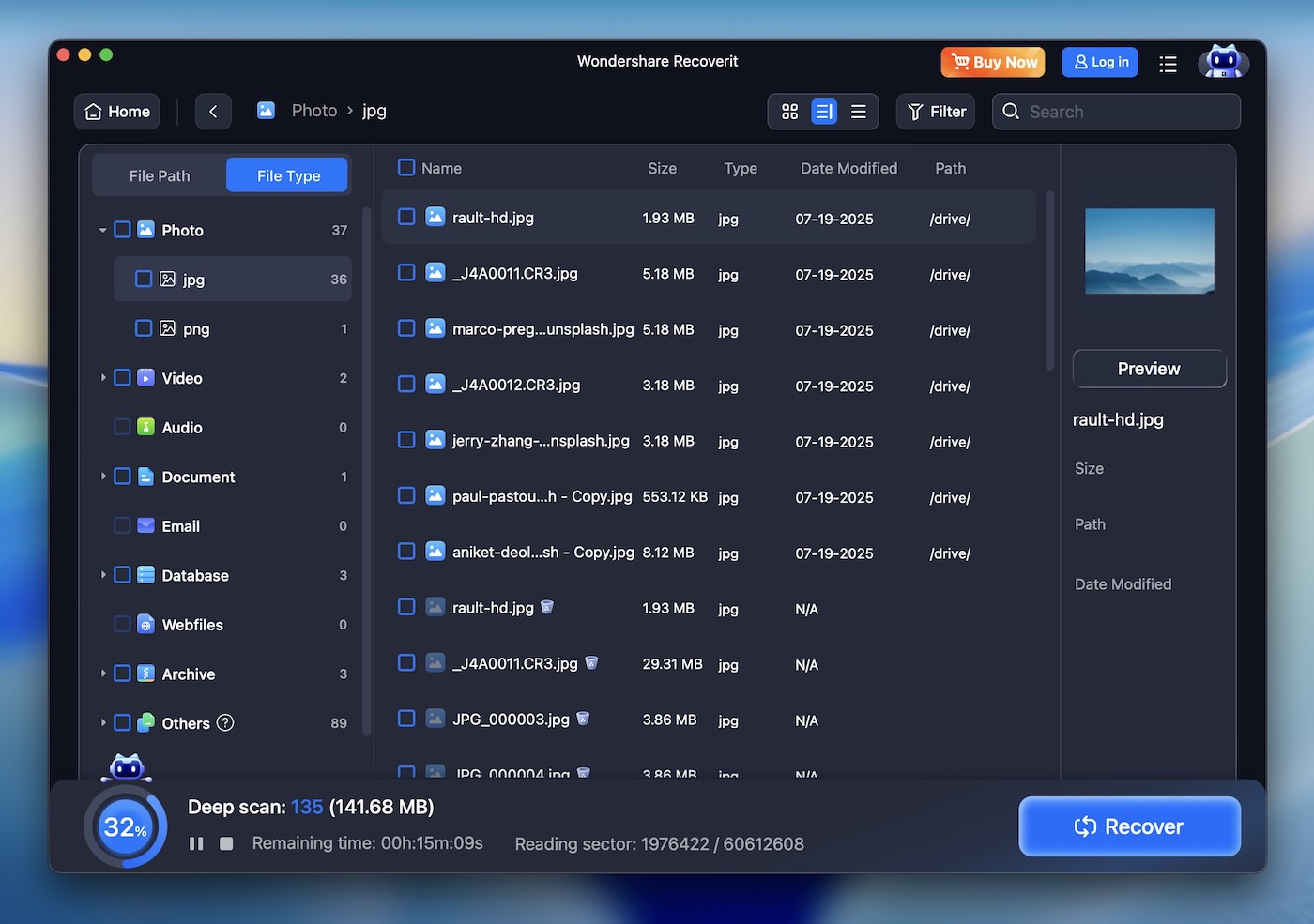
Number 5 on our list is Wondershare Recoverit Data Recovery for Mac, a user-friendly tool developed by Wondershare, known for its wide range of multimedia and utility software. With its clean and modern interface, Recoverit mostly aimed at beginners.
✅ Key Features:
- Offers Quick and Deep Scan modes for various recovery needs.
- Video repair function (can repair video files on Mac, such as MP4, MOV, and MTS.)
- Preview functionality for recoverable files before actual recovery.
- Recovers data from various storage media.
- 24×7 technical support.
📈 Recovery performance. Wondershare Recoverit handles standard file recovery with ease, especially in cases of accidental deletions or unintentional formatting. The Deep Scan mode does a solid job recovering lost media files from formatted memory cards and other storage. However, for more complex situations its performance lagged behind tools like Disk Drill or R-Studio. Still, it shines in less demanding scenarios.
🖥️ Usability. The standout feature of Wondershare Recoverit is its clean and intuitive interface. It’s designed to be easy for anyone to navigate, with minimal clutter and clearly labeled options. Even first-time users will have no trouble figuring out how to run scans and recover files.
🤝 Compatibility. Recoverit supports a broad range of file systems, including APFS, HFS+, HFSX, FAT, exFAT, and NTFS, with some support for Linux formats like ext4 and Btrfs. While the official site lists those Linux options, in our tests, they seemed more like checklist padding than fully reliable support. On the macOS side, Recoverit runs smoothly and is macOS 26 (Tahoe) ready, with native compatibility for Apple Silicon M1, M2, M3, and M4 chips. M5 support isn’t officially confirmed yet.
🏷️ Price. Wondershare Recoverit offers a free version (with a strict data recovery cap.) Paid plans start at $79.99 for the Essential version (for 2 Macs), with more advanced options available for higher-tier needs. While it’s a solid tool for everyday recovery, the price feels a bit high for what it offers, especially when compared to other tools that provide more advanced recovery options.
- Simple, user-friendly interface
- Excellent for basic recovery tasks
- Supports a wide variety of file formats
- Video repair function
- Fast recovery speed
- High cost
- Lacks advanced recovery options
- Not enough customizable search fields
- Resource-intensive
- No scan session management
- Poor handling of lost partitions
- Limited free version
6. iBoysoft Data Recovery for Mac
Recovery speed: Average | Supported file systems: APFS, HFS+, HFSX, FAT32, exFAT, NTFS | Requirements: macOS 10.13+ | Price: Starts at $89.95 (monthly), no lifetime license

At number 6, we put iBoysoft Data Recovery for Mac – a modern and simple tool for macOS users. It supports both Intel and Apple Silicon (M1-M4) Macs, including T2-chip models, and should be the right fit for many home users who just need to rescue files from a USB drive, an external SSD, or the emptied Trash. iBoysoft keeps things simple.
✅ Key Features:
- Selectable file types before scanning.
- Dedicated module for lost partition recovery.
- Scan sessions can be saved and resumed.
- Compatible with M1-M4 Macs.
- Clean and minimal installer footprint.
- Available in multiple languages (English, German, French, Japanese, Portuguese, Spanish).
📈 Recovery performance. In our tests, iBoysoft Data Recovery for Mac performed reasonably well when recovering recently deleted files from common file systems like exFAT and FAT32. However, it showed limitations when working with APFS and HFS+ volumes, especially on damaged or partially formatted disks. Signature scan performance was hit-or-miss – it successfully recovered some RAW photo formats like CR3 and GPR but failed to bring back some JPG files in usable condition.
It’s not the most advanced option on our list, but iBoysoft still earns its place as one of the best data recovery programs for Mac thanks to its ease of use and solid performance in common scenarios.
🖥️ Usability. The UI is clean but feels static. It doesn’t scale well on Retina or high-DPI displays, and key actions (like selecting all file types) require extra steps every time. There’s no real-time recovery during scan, no scan filtering or tagging, and no thumbnail view. It relies heavily on a single tree view, and there’s no folder structure preview for most results. The experience is functional but lacks the polish seen in other data recovery software for Mac.
🤝 Compatibility. iBoysoft supports macOS 10.13 and later, and works on Intel and Apple Silicon (M1–M4) Macs. It recognizes APFS, HFS+, HFSX, FAT32, exFAT, and NTFS. While it doesn’t currently support Linux formats or recovery from disk image files like DMG, its core macOS compatibility makes it a good fit for basic recovery (it doesn’t offer full support for encrypted APFS volumes or Time Machine backups).
🏷️ Price. The Basic Mac license starts at $89.95/month, with an annual plan at $99.95. There’s no lifetime license option. BitLocker recovery requires a separate paid license. The trial lets you scan and preview files, but does not allow actual recovery of any data. While the subscription model may work for short-term needs, some other tools on this list offer lifetime licenses at similar prices.
- Lightweight installer with low system resource usage
- Can scan and recover from BitLocker drives (extra license)
- Session saving and manual partition recovery available
- Multi-language interface
- Selective file-type scanning before scan
- Works on both Intel and Apple Silicon Macs
- No lifetime license, subscription-only pricing
- No disk imaging
- Limited usefulness in APFS or severely damaged partitions
- No live result updates
- No S.M.A.R.T. monitoring
- Must manually reselect file types before every scan
- Preview support limited to a handful of file types
7. EaseUS Data Recovery Wizard for Mac
Recovery speed: Average | Supported file systems: APFS, HFS/HFS+, NTFS/NTFS5, FAT/FAT32/exFAT | Requirements: Mac OS X 10.9 or later | Price: Free version (recovers up to 2GB), Pro version starts at $89.95/month

Next is EaseUS Data Data Recovery Wizard for Mac, developed by EaseUS Data, a company known for a wide range of applications for data recovery, partition management, backups, and multimedia tools. EaseUS Data Data Recovery Wizard for Mac has been around for many years and has become a popular choice for Mac users. You’ll often find it mentioned in editor picks, Reddit threads, and rankings of the best Mac recovery software.
✅ Key Features:
- Recovers deleted, formatted, or inaccessible data from various devices.
- Cross-platform availability.
- Supports a wide range of file formats.
- Quick and Deep Scan modes for different levels of data loss.
- Recovery during scanning.
- 1 on 1 remote assistance service.
📈 Recovery performance. EaseUS Data Data Recovery Wizard performs reliably in common recovery situations. We’ve used it to recover deleted files, as well as data from formatted external drives, and it did a good job with the majority of the lost data. While the Quick Scan is fairly fast for simple recoveries, the Deep Scan can be slower, especially with larger drives, but it’s thorough. Although it’s not designed for more complex situations like Disk Drill or R-Studio, it excels in everyday scenarios like accidental deletions.
🖥️ Usability. EaseUS Data Data Recovery Wizard offers a clean and simple interface, but we found it to be a bit glitchy at times. It also tends to promote other EaseUS products throughout the interface, which can feel distracting. The preview function is more limited than many of the other tools on this list, especially when it comes to obscure file types. Still, the software does a good job guiding home users through recovery, it is approachable even for those with little technical background.
🤝 Compatibility. EaseUS Data Data Recovery Wizard supports all the major file systems on Mac, including HFS, HFS+, APFS, FAT32, exFAT, and NTFS. It is also available on both macOS and Windows.
🏷️ Price. EaseUS Data offers a free version that allows recovery of up to 2GB of data. For unlimited recovery, the Pro version starts at $89.95. While this price is on the higher end, it’s in line with other premium recovery tools, and that makes it a worthwhile investment for users who prioritize ease of use.
- Extremely easy-to-use
- Supports a wide range of file formats and devices
- Great for standard recovery tasks
- File preview before recovery
- Remote assistance
- Can repair corrupted images
- Deep Scan can be slow
- Not designed for advanced recovery scenarios
- Higher price point for full recovery options
- Pop-up ads
- Files larger than 100 MB cannot be previewed
- Inaccurate time estimates
- No disk imaging
- No automatic scan resumption
8. FonePaw Data Recovery for Mac
Recovery speed: Average | Supported file systems: HFS+, APFS, FAT16, FAT32, exFAT, NTFS | Requirements: macOS 10.12 or later | Price: Free trial available (limited recovery), Full version starts at $63.95/month

And last on our list is FonePaw Data Recovery for Mac, a straightforward and user-friendly tool aimed at recovering lost files from Mac devices. Developed by FonePaw, a company known for multimedia and utility software, FonePaw Data Recovery is geared toward everyday users who need to recover deleted or lost files without complicated setups.
✅ Key Features:
- Quick and Deep Scan modes for different levels of file recovery.
- Supports external devices like USB drives, memory cards, and external hard drives.
- Allows selective recovery of specific file types.
- Allows users to preview files before recovery.
- Partition recovery.
📈 Recovery performance. FonePaw Data Recovery sits on the lighter end of the data recovery software spectrum; it’s not Disk Drill, R-Studio, or UFS Explorer, and it doesn’t try to be. In our experience, it’s good for recovering deleted files from healthy external devices like USB flash drives and SD cards. It’s simple and works fine for straightforward jobs. It’s not something you’d reach for if the drive is damaged, the file system is complex, or the data might be fragmented. This tool is better suited for straightforward jobs.
🖥️ Usability. FonePaw Data Recovery is designed with casual use in mind. It’s not packed with technical options and makes the process straightforward for most users. However, we found that its interface can occasionally feel unresponsive, and it’s not the fastest tool on this list, so expect to spend a bit more time waiting. Despite that, it’s a good tool that’s easy to navigate.
🤝 Compatibility. FonePaw supports HFS+, APFS, NTFS, FAT16, FAT32, exFAT. It runs on macOS 10.7 and above; compatible with both older and modern Macs. There are also dedicated versions for Windows, Android, and iPhone devices.
🏷️ Price. FonePaw offers a free trial that lets you scan and preview files before recovery, but actual recovery is limited in the trial version. A standard license runs $63.95/month (currently discounted to $44.77), and there’s a one-time Lifetime option for $89.95, which is also on sale at the time of this writing.
- Easy to use, simple interface
- Effective for basic recovery tasks like deleted files
- Offers Quick and Deep Scan modes
- The interface can be sluggish
- Lacks advanced recovery features for more complex cases
- Can’t recover specific folders
File Recovery Software for Mac that Didn’t Make the Cut
Beyond the top picks, we want to highlight several other file recovery tools for Mac that are still worth checking out. While they didn’t make it to our main list (maybe the developer fell behind on updates, or the tool had a few quirks we couldn’t ignore) they still bring something useful to the table.
1. Lazesoft Mac Data Recovery
The main reason Lazesoft Mac Data Recovery didn’t make our list is that it no longer supports the latest macOS versions, which makes it irrelevant for most Mac users. While once a useful free tool, it’s been abandoned by its developers, with the last update in 2015. Lazesoft struggles with modern file formats, and lacks compatibility with macOS beyond Mojave (10.14). You simply won’t be able to run it on macOS Sequoia or Tahoe. However, if you have an older Mac or MacBook, it still provides solid data recovery – and does so completely for free.

- Free to use with no limitations on recovery
- Can scan unmounted disks
- Offers selective scans and real-time recovery
- Doesn’t support macOS beyond Mojave (10.14)
- Outdated interface and features
- Struggles with modern file formats and large files
2. Alsoft DiskWarrior
Another honorable mention that’s less relevant in 2024 is Alsoft DiskWarrior. Alsoft DiskWarrior has long been respected for its ability to repair damaged HFS and HFS+ drives and its ability to rebuild corrupted directories. However, it lacks support for the modern APFS file system, which makes it less useful for newer Macs. With an outdated interface and no free trial, its high price is harder to justify, especially as its relevance fades in today’s Mac environment.
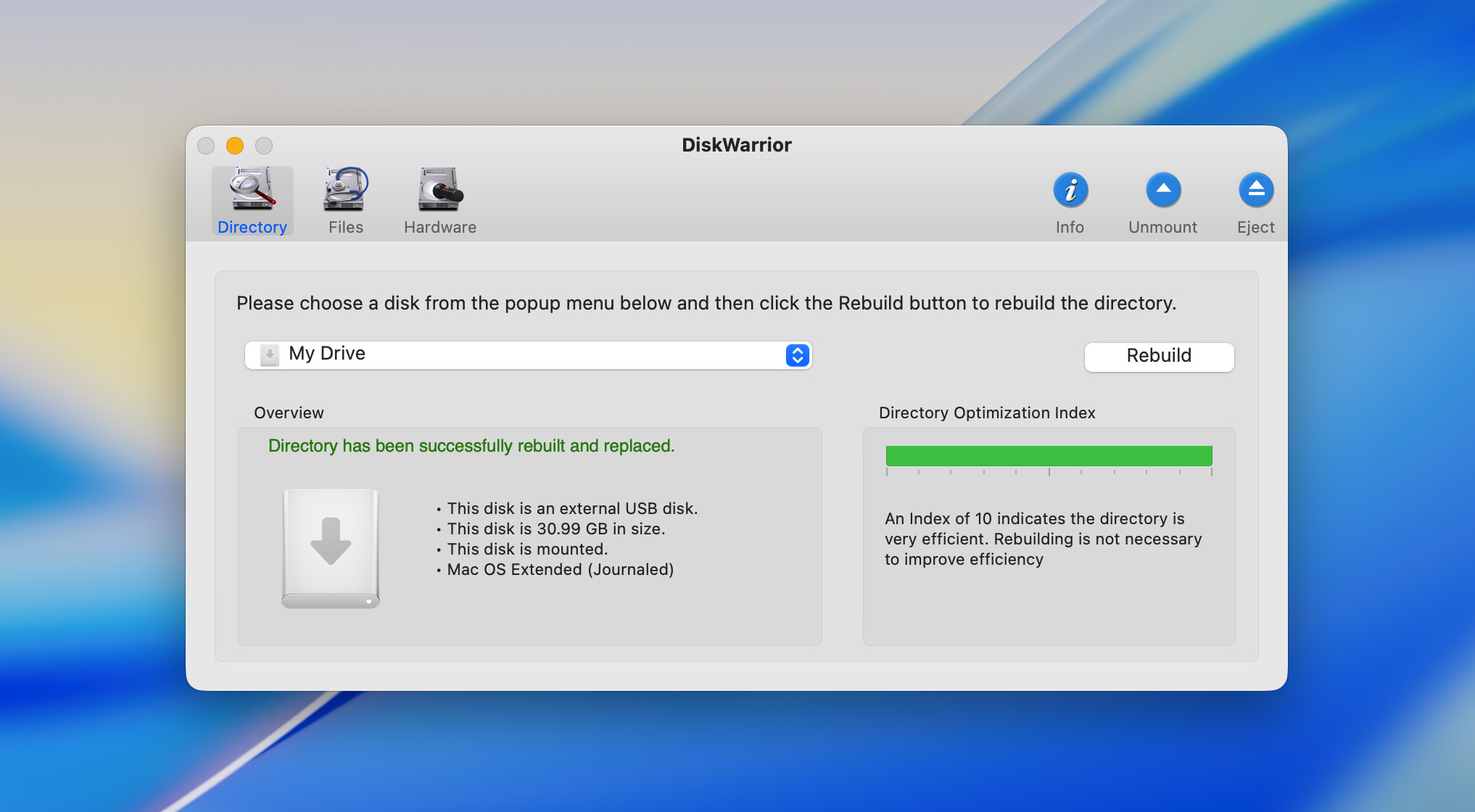
- Repair capabilities with HFS and HFS+ drives
- Offers bootable recovery and disk optimization
- No support for APFS
- Outdated interface and features
- High price with no free trial or money-back guarantee
3. TestDisk
We already mentioned TestDisk alongside PhotoRec, as they come bundled together. We’ve often used TestDisk to recover damaged or lost partitions on storage devices. It is a very valuable tool in the data recovery world. However, since it’s primarily focused on partition recovery rather than individual file recovery, we’re including it here separately. TestDisk is a go-to partition recovery tool, but it’s not designed as a dedicated file recovery tool.

- Free and open-source
- Excellent partition recovery
- Can fix boot issues
- Supports a wide range of file systems
- Command-line interface, not beginner-friendly
4. Stellar Data Recovery
Stellar Data Recovery is a well-rounded and popular option for users looking to recover lost or deleted files on macOS. We didn’t include Stellar Data Recovery in the main section because, while it offers solid features and supports macOS-specific file systems, its performance and pricing don’t quite match the top tools on our list. The slower deep scan speed and higher cost for full functionality make it less appealing compared to other options that provide faster and more cost-effective recovery.

- Supports a wide range of file systems, which includes macOS-specific ones.
- Easy-to-use interface, suitable for beginners.
- Additional features like RAID and email recovery.
- Slower deep scan compared to competitors.
- Higher price for the full version with all features.
5. Data Rescue 6
Data Rescue 6, developed by Prosoft Engineering, is a popular data recovery tool that’s been around for years. We didn’t include Data Rescue 6 in the main section due to several shortcomings that impact its overall value. Despite being a well-established name in data recovery, the software has a high price point with a subscription-based model ($79 for 30 days or $399 per year), which makes it less accessible. Additionally, slow scan times, limited file system support, and issues like needing to be in Recovery Mode for system disk scans reduce its usability. These factors, coupled with its inability to scan encrypted devices and lack of modern features like complete APFS support, made it a less worthwhile option compared to other tools.

- Free Data recovery up to 1GB (New Users Only)
- Easy-to-use interface with customizable scanning options
- Mail alerts
- Higher cost for full access to all features.
- Slower scan times compared to top-tier tools.
The Truth About Free Data Recovery Software for Mac
Free data recovery software for Mac often sounds better than it is. Many tools claim to be free, but they usually come with strings attached. Most will let you scan and preview recoverable files, but when it comes to actually recovering those files, you’ll hit a limit (typically to 1GB) or be prompted to pay for an upgrade.
Free options also tend to lack key features like file previews, support for a wide range of file systems, or the ability to handle more serious recovery cases, like damaged drives or corrupted partitions. These tools are often fine for basic recovery, like for recently deleted files, but fall short when you need more advanced recovery.
Another downside is that many of these free tools aren’t updated regularly. For instance, Lazesoft Mac Data Recovery is completely free but hasn’t been updated in years, which means it doesn’t work with newer macOS versions like Sequoia or Tahoe.
While some freemium tools like Disk Drill and EaseUS Data offer a free version with limited features, you’ll likely need to upgrade for full functionality. PhotoRec, an open-source tool, is one of the few that’s truly free with no recovery limits – but it’s harder to use and doesn’t have the user-friendly design that most people prefer.
In the end, free software might work for small, simple recovery jobs, but for anything more complicated, paying for a professional solution is usually worth it.
So, Which Data Recovery Software Should I Use?
If you’re a Mac user looking for an easy-to-use tool with broad functionality, Disk Drill is a top choice. It combines a modern interface with powerful recovery capabilities, supports multiple file systems and offers a free trial to preview recoverable files. Plus, its additional features, like disk health monitoring and byte-to-byte backups, make it a great all-around tool. What also sets it apart is how reliably it keeps pace with macOS – it supports new releases as they come out and runs smoothly on everything from Intel Macs to the latest Apple Silicon models (M1 to M5). That’s not something every tool out there can claim.
If you’re more technically inclined and need to recover data from damaged partitions or complex setups like RAID arrays, R-Studio is a powerful, professional-grade option, albeit with a steeper learning curve. Its depth and complexity make it better suited for pros, but keep in mind that Disk Drill can handle these cases as well, and usually sufficient for most users.
On the other hand, if you’re comfortable with a command-line interface and are looking for a truly free option, PhotoRec (which comes with TestDisk) is a solid open-source choice for file recovery, though it’s more suited to users who don’t mind working without a polished interface.
In the end, the best software for you comes down to balancing your technical comfort level, budget, and the complexity of the recovery you need. For most recoveries, the freemium options like Disk Drill are a great choice. For professional use or more complex recoveries, look toward tools like R-Studio or UFS for more advanced capabilities.
FAQ